Client tasks
A task is a short to-do for a client with a due date and an assignee: “call — she didn't come”, “remind about the membership renewal”. Every task is linked to a client.
1. Create a task
You can create a task on the Clients → Tasks page, in the client's profile (the “Tasks” section) or right from a booking. Enter a title, a due date — the day and, if needed, the time — and an assignee; by default, that's you.
2. Work with the list
The tasks page has three tabs: Today, Upcoming and Done. On “Today”, overdue tasks are highlighted in red and shown first. Filter by assignee and branch.
3. Close in one click
Tick the circle next to a task — it becomes done. Any staff member who can see a task can close it, and the system remembers who did it and when. Cancelling a task means deleting it.
The assignee gets a push when a task is assigned to them and when it's due (if a time is set). To turn it off, go to Settings → Personal → Push notifications, the “Tasks” row.
4. Tasks on the home page
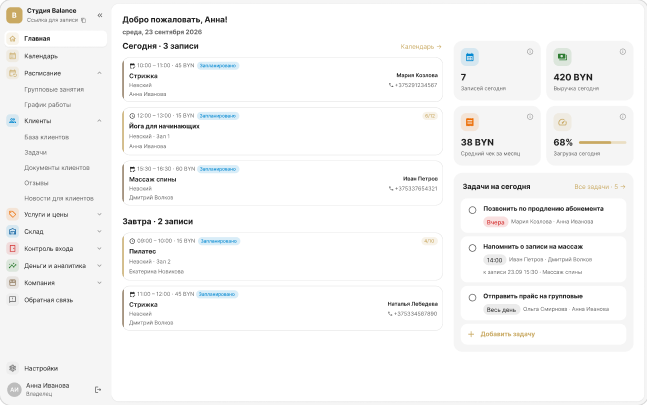
On the home page, the Tasks for today block shows up to five upcoming tasks — overdue ones first — and an “Add task” button.