Booking confirmation
On this page
Once the branch, services, time and employee are chosen, Continue takes the client to confirmation: they check the details, leave their contacts and book.
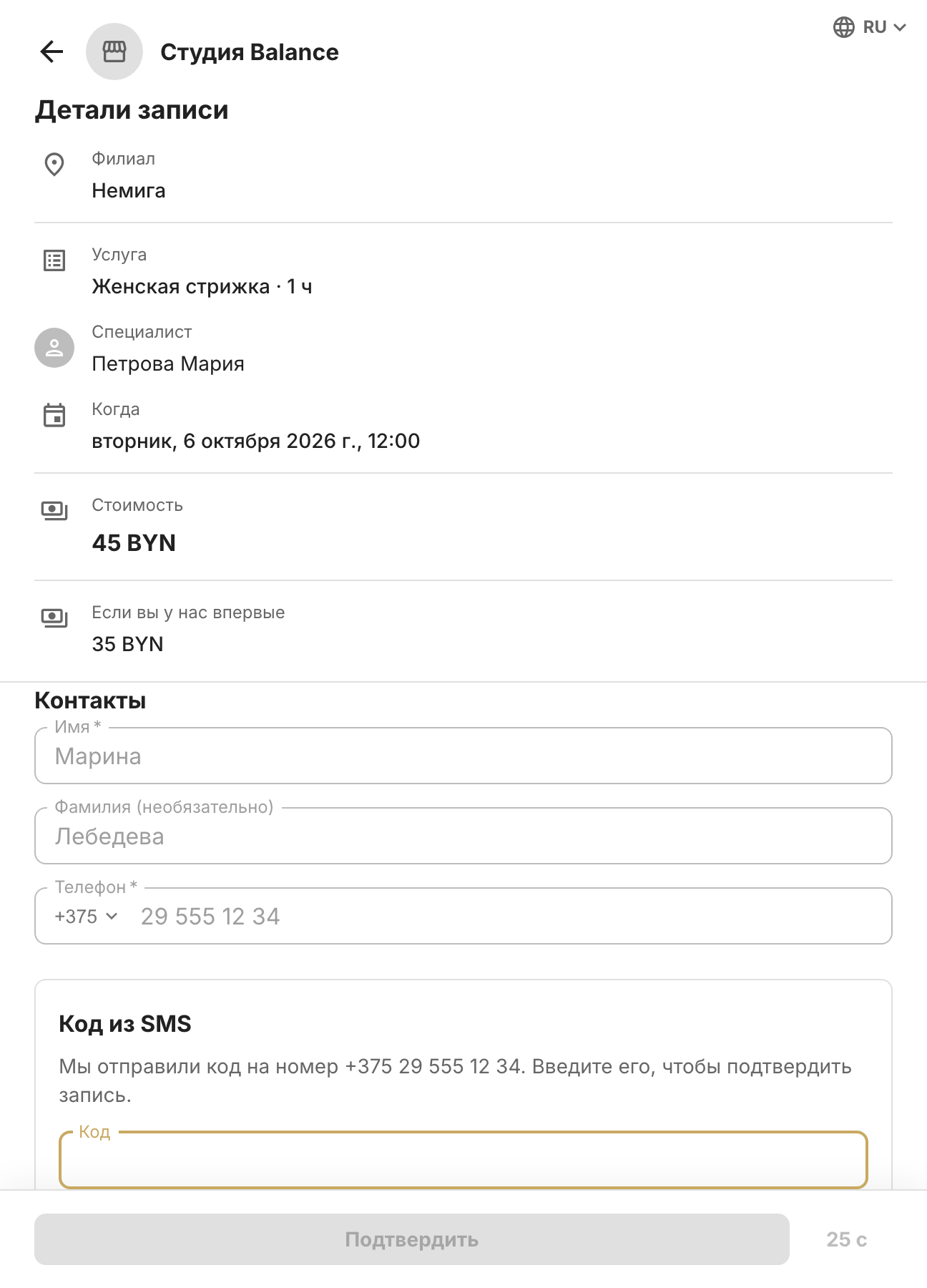
1. Booking details
At the top is Booking details: branch, services with their duration, specialist, date and time, and price. For a group session, the session with its date and time is shown instead of services and specialist.
If the service has a first-visit price, it goes on a separate If it's your first visit line: the client hasn't entered their phone yet, so they see both prices. The phone number decides which one applies: the booking gets the discounted price if the client is booking with your company for the first time and isn't marked as Visited before.
2. Contacts
The client fills in First name, Last name (optional) and Phone — a full mobile number. The phone number links the booking to the client: if they're already in Clients → Client base, no second client card is created.
3. SMS code
If booking confirmation by SMS code is turned on in Settings → Client notifications, the button says Get code. A 6-digit code is sent to the number; the client enters it and taps Confirm. If it doesn't arrive, they can tap Send again after 30 seconds. If confirmation is off, the button says Book and the booking is created right away.
No code is sent and the booking is created right away if:
- the number has already been verified with your company and Skip for verified numbers is selected;
- the SMS can't be sent — for example, the SMS balance has run out. The client won't get stuck: the booking goes through without a code.
A code is sent even when confirmation is off if the number has a company pass that the visit can be deducted from: the visit is deducted only with the code entered in this booking.
4. After booking
- The client sees Booking confirmed and can tap Add to calendar — the calendar event includes a link for managing the booking. If a pass was charged, the same screen shows how much was deducted and how much is left.
- The booking appears in the Calendar right away, and the employee gets a push about the new booking unless they've turned these off in personal settings.
- If the “You're booked” SMS is on, the client gets an SMS with a link to the booking, where they can cancel it no later than the deadline in the online booking settings, 3 hours before it starts by default.
- If reminders are on, the client gets one before the visit — see SMS packages and notifications.
While the client was filling in their contacts, the time may have been taken. Then they'll see “This time slot is already taken” and need to go back to the Date and time step and pick another time. A client also can't book the same time twice — they'll see “You already have a booking at this time”.