Connecting online payment
Clients can buy passes by card in the client app and in the Shop on the company's website, and in the app they can also pay for a freeze. The money goes straight to the company's account through its own online acquiring: SetNow takes no part in the settlement and never sees card details.
1. Check the country and currency
Which payment provider you can connect depends on the Country and Currency fields in Company → Company details:
| Payment provider | Country | Currency |
|---|---|---|
| bePaid | Belarus | BYN |
| Flitt (TBC Bank) | Georgia | GEL, USD, EUR |
| Bank of Georgia | Georgia | GEL, USD, EUR, GBP |
If Settings → Online payment says online payment is unavailable instead of showing the form, check this pair: the country and the currency are changed separately, and one of them is often forgotten. The Open Company details button takes you straight there.
2. Get acquiring from the provider
The contract is signed directly with the payment provider or bank: fees and settlement times follow your contract, and SetNow keeps nothing. Once connected, the provider gives you an ID and a key:
- bePaid — Shop ID and secret key, in your bePaid account.
- Flitt — for companies with a TBC Bank account. Merchant ID and payment key are in your Flitt account (portal.flitt.com), under technical settings.
- Bank of Georgia — for companies with a Bank of Georgia account. The bank issues the Client ID and Client Secret when it connects online payments.
Only the company needs an account at TBC Bank or Bank of Georgia — clients pay with a card from any bank.
3. Enter the keys
Open Settings → Online payment, choose the Payment provider and fill in two fields — they are named the same way as in the provider's account:
| Payment provider | ID | Key |
|---|---|---|
| bePaid | Shop ID | Secret key |
| Flitt (TBC Bank) | Merchant ID — digits only | Payment key |
| Bank of Georgia | Client ID | Client Secret |
Click Save. The key is stored encrypted and is never shown again — after saving, the field is empty. Leave it empty to keep the key, or enter a new one to replace it.
Bank of Georgia keys are checked on save. If the bank rejects them, you will see “The payment provider didn't accept the ID and key”: check the keys and Test mode — the bank's sandbox keys and live keys are different.
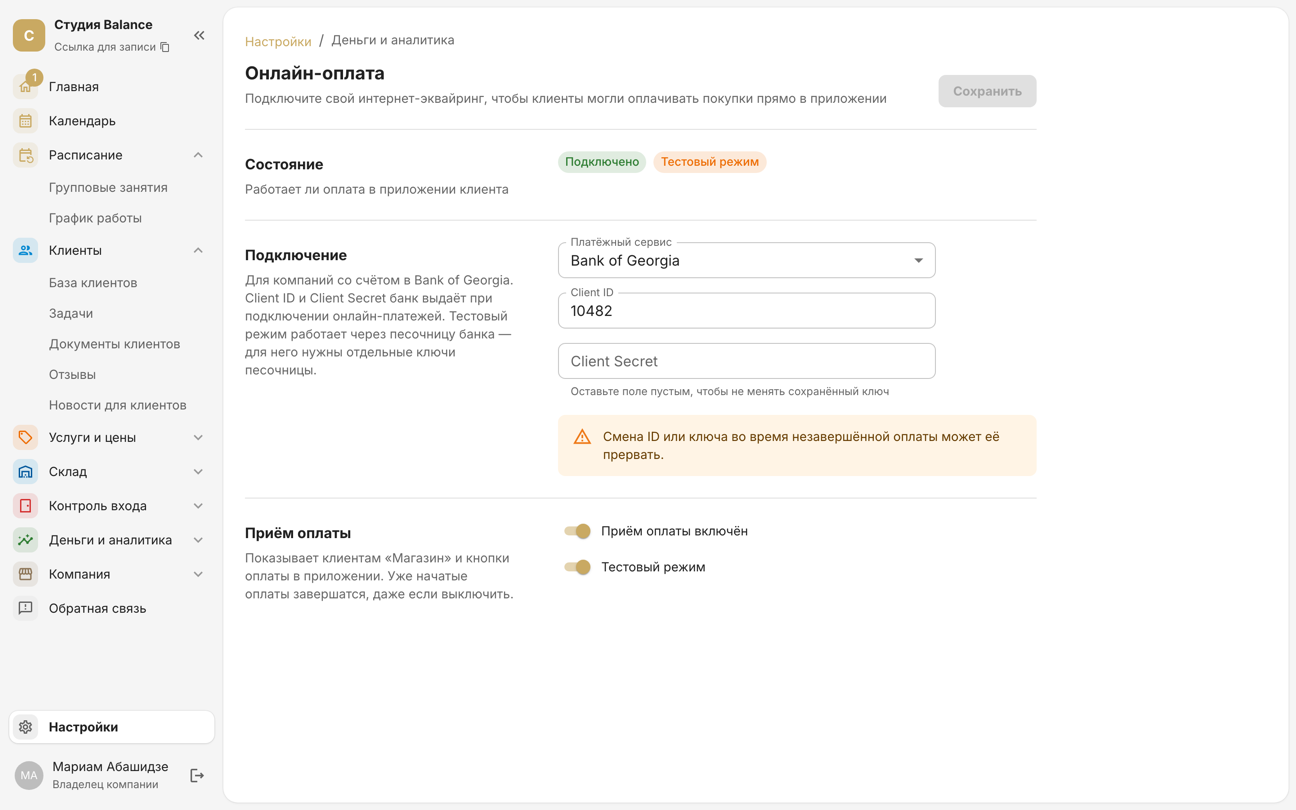
The section is visible to the owner and to administrators whom the owner has given Online payments in Settings → Page access.
4. Make a test payment
Before going live, check a payment without real money. Test mode is turned on differently:
- bePaid — the Test mode switch in SetNow. Card 4200 0000 0000 0000 — the payment goes through, 4005 5500 0000 0019 — declined.
- Flitt — SetNow has no switch, test mode is turned on in your Flitt account. Card 4444 5555 6666 1111 — the payment goes through, 4444 1111 6666 5555 — declined.
- Bank of Georgia — the Test mode switch and the bank's sandbox keys instead of the live ones. Card 4000 0000 0000 0001 — the payment goes through, 4000 0000 0000 0002 — declined.
For a test card, use any expiry date in the future and any three digits as the CVV.
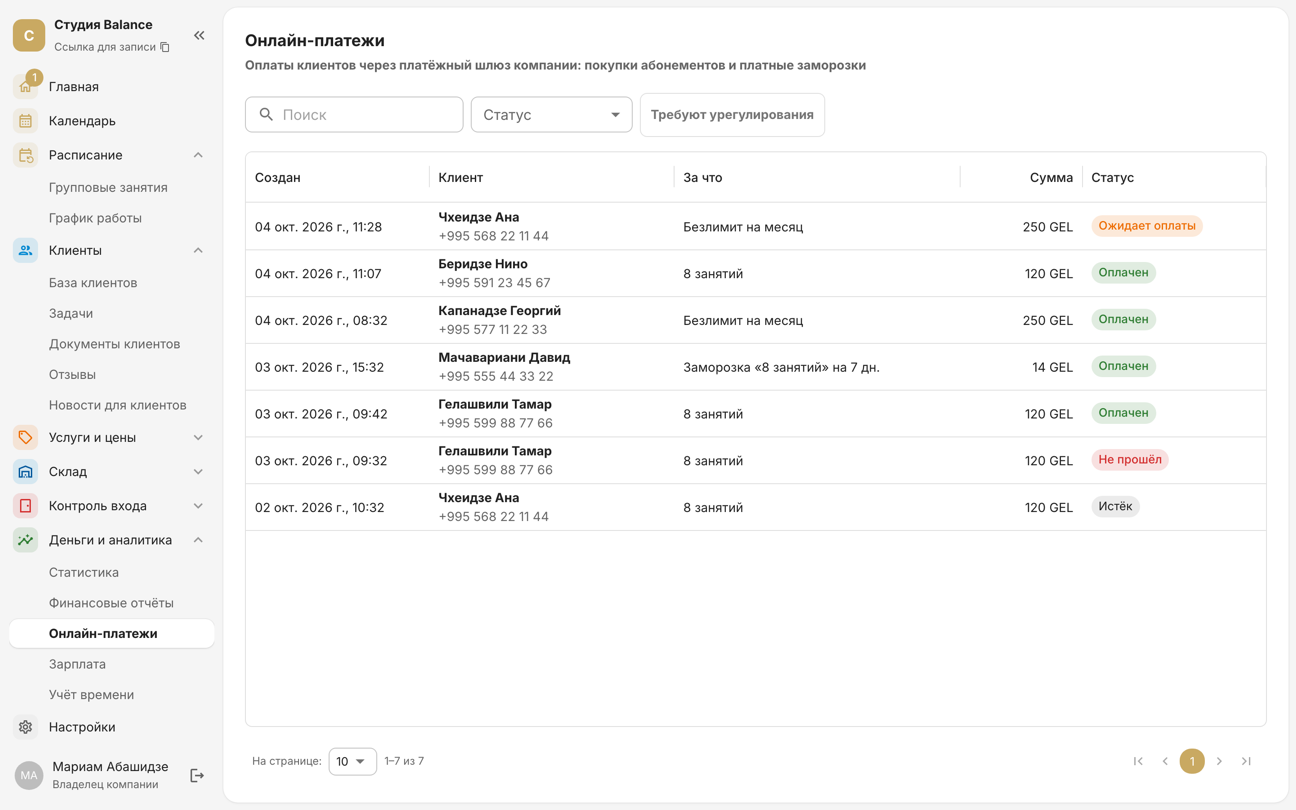
Turn on Accepting payments is on, save, and buy a pass in the client app or in the Shop on the company's website. The pass should appear in the client's card, and the payment in Money and analytics → Online payments with the status “Paid”.
While test mode is on, all clients see the Shop, and paying with a test card issues a real pass. Test quickly and don't leave test mode on. Revoke passes issued for test payments in the client's card with Revoke.
5. Switch to real payments
Turn off Test mode and save. For Bank of Georgia, also replace the sandbox keys with the live ones; for Flitt, switch the mode in your Flitt account. The Status block will show Connected — from now on clients pay for real.
The Accepting payments is on switch hides the Shop and the payment buttons from clients. Payments started before you turn it off still complete: if the money was charged, the client gets the pass.
What the client sees
- In the client app — the Shop with passes, and paid freezing of a pass.
- On the company's website — the Shop under the booking steps. The client buys a pass with their phone number and gets a link to it: on the payment screen, by SMS and by email if they entered one. The link shows what's left and the expiry date, and lets the client book — the visit is deducted without an SMS code.
- The client enters card details on the payment provider's page — neither SetNow nor your staff can see them.
- The pass appears once the provider confirms the payment, usually within a few seconds. If the client closes the page without paying, no pass is issued.
If your company has no SMS
The pass link doesn't depend on SMS: after paying on the website the client sees it on screen and gets it by email if they entered one. If nothing was sent, the screen asks them to save the link and lets them copy it.
- Selling a pass at the studio — enter the client's email in the issue dialog and the link goes to their inbox.
- The client lost the link — open the pass in the client's card and tap Membership link: show the QR for the client to scan with their phone, or email the link.
Membership link is available to the owner and admins. If clients are shown the digital entry pass, access to the Check-in log is also required: the pass page shows the entry QR and PIN.
Refunds
Money is refunded in the payment provider's account — SetNow has no refund button. Revoke the pass itself in the client's card with Revoke.