Group sessions
Schedule → Group sessions is the week's schedule: sessions with several spots that clients book themselves or an administrator books them into. The same sessions appear in the calendar alongside regular bookings.
What you need first
- An event-only service. A session can be created only for a service of the event-only type — the type is chosen in the service card, Services and prices → Services. Such a service can't be booked into free time, only into a session.
- Host — an employee from the service's performers field. If the field is empty, any employee can host the session.
- Rooms — if your sessions are held in separate rooms. They're added in the branch card, Company → Branches. When a branch has rooms, a session must have a room, and two sessions can't take the same room at the same time.
Weekly schedule
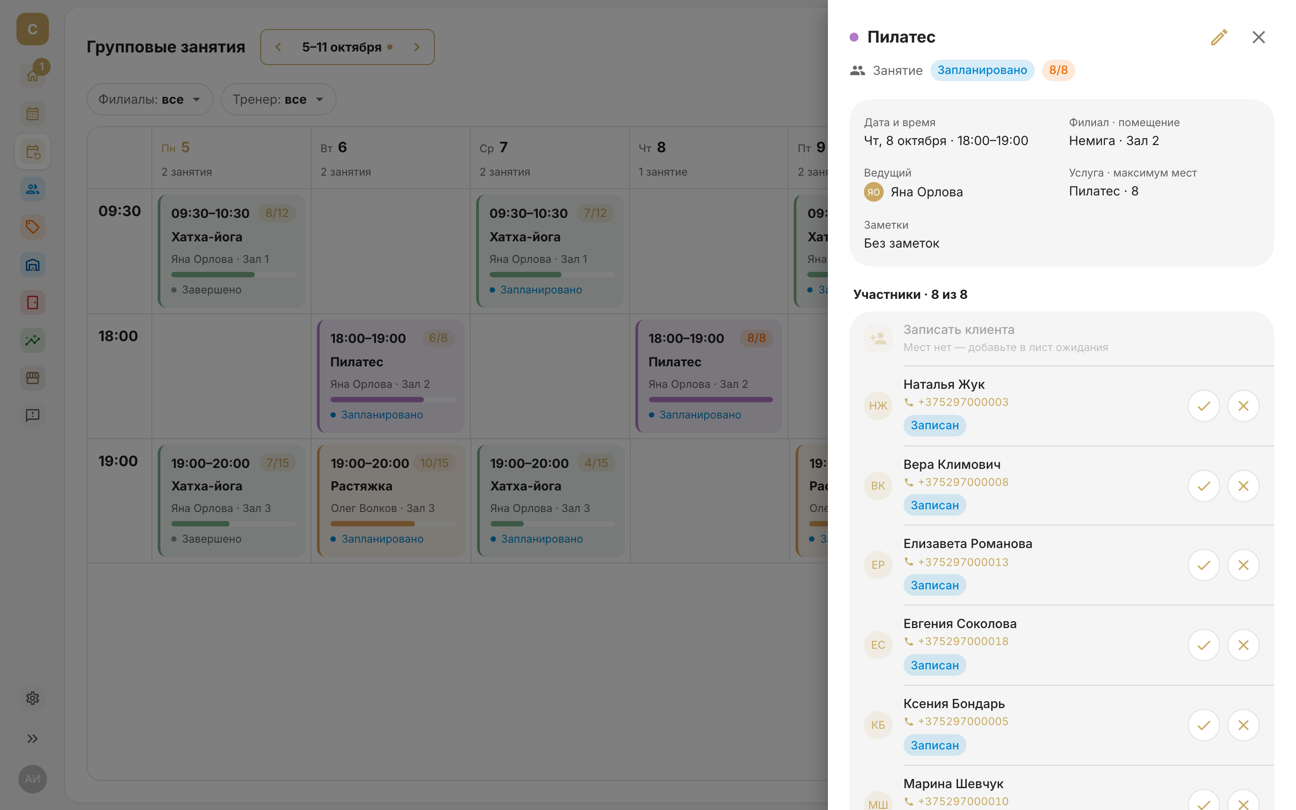
The table's rows are start times and its columns are days of the week, so the same sessions on different days line up. Each tile shows the time, how many spots are taken, the service, the host and the room, a fill bar and the status. The Branches and Coach filters narrow the table; a specialist sees only their own sessions.
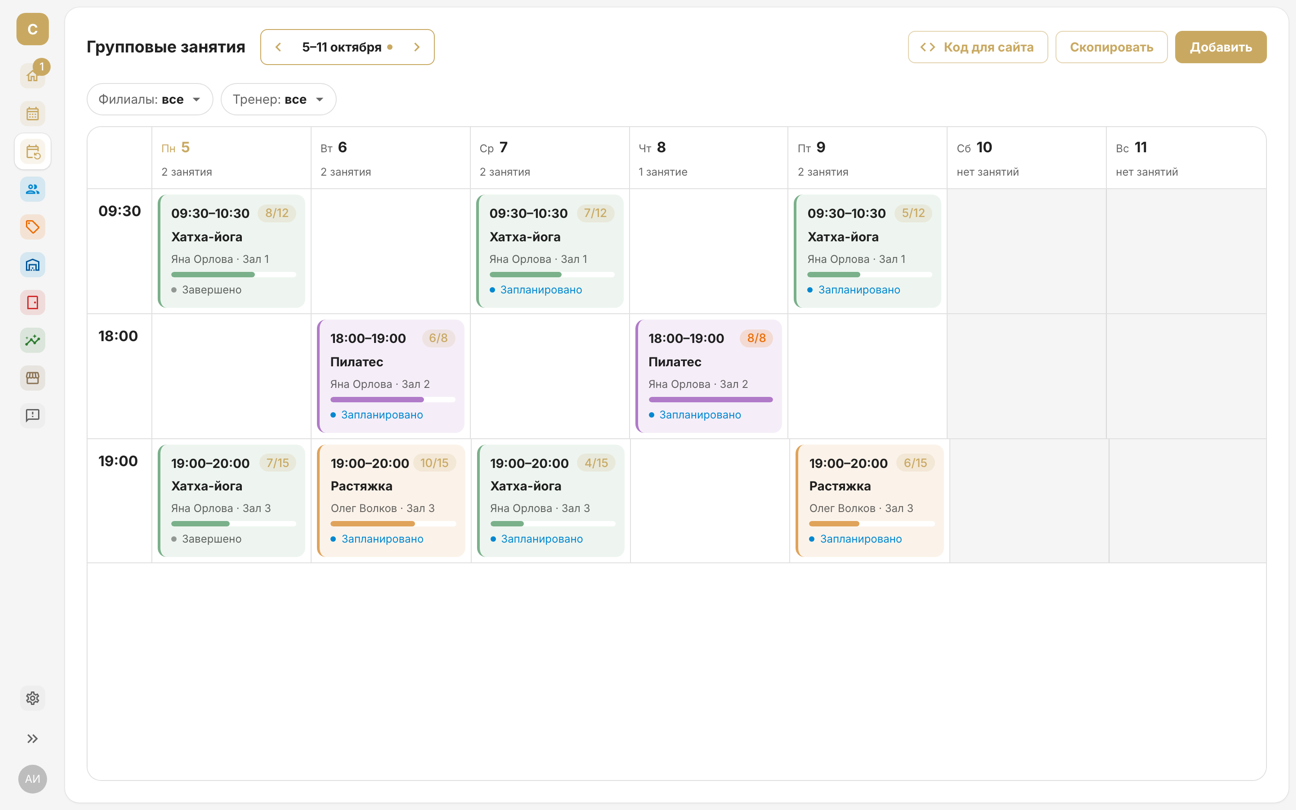
Hover over an empty cell to see Add: the session will be created for that day and time. Click a session to open its card.
1. Create a session
Click Add — or, in the calendar, Create → Create session. In the form:
- Service, Host, Branch and Room — each room is shown with its capacity;
- Start date and time and End — if the end is empty, the session lasts as long as the service;
- Max participants — how many clients can book. You can enter more than the room holds, but the form will warn you;
- Notes.
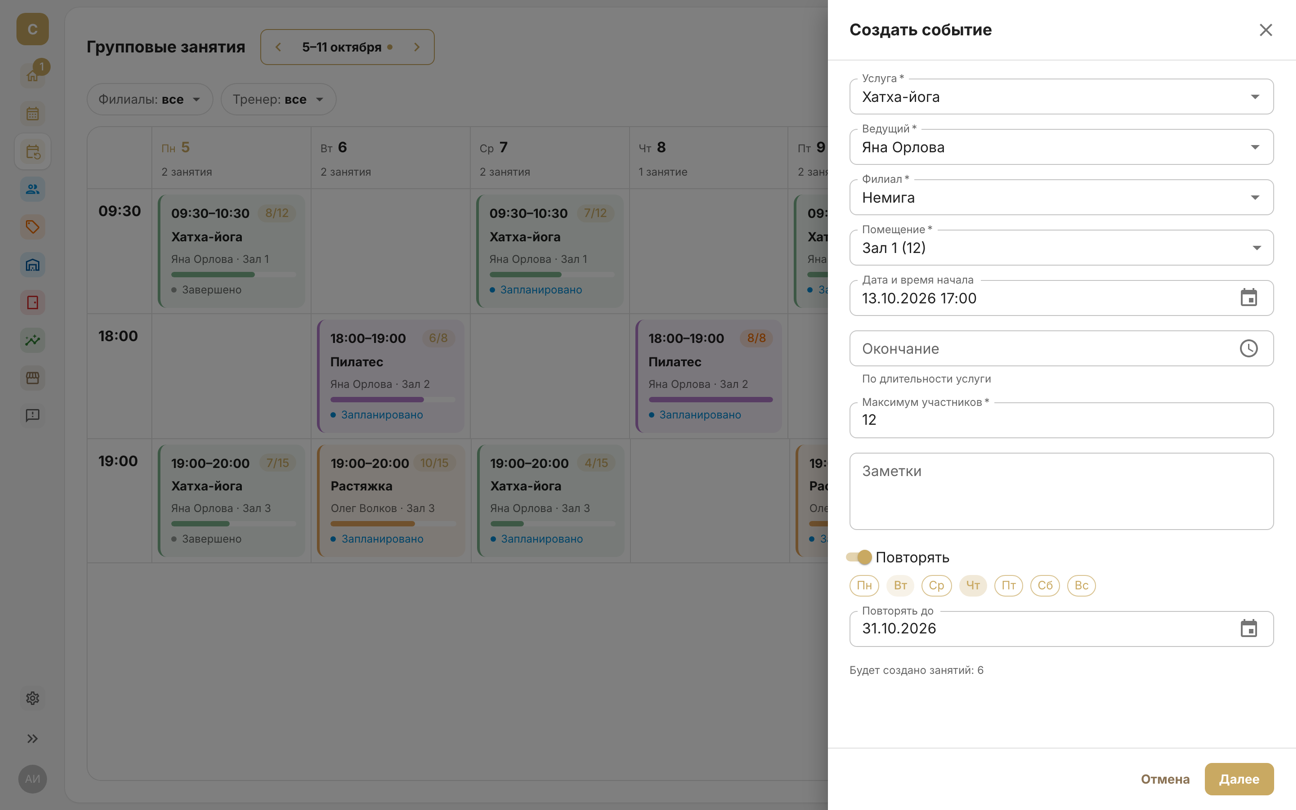
If the host has no shift at that time, their shift at that branch stretches by itself — more details. The session won't be created if the host already has a booking or session at that time, the time is closed by a busy block, or the room is taken.
2. Repeat it for the month ahead
Turn on Repeat, tick the days of the week and choose Repeat until — the end of the month by default, up to three months ahead. Below the fields you can see how many sessions will be created. Next shows all the dates.
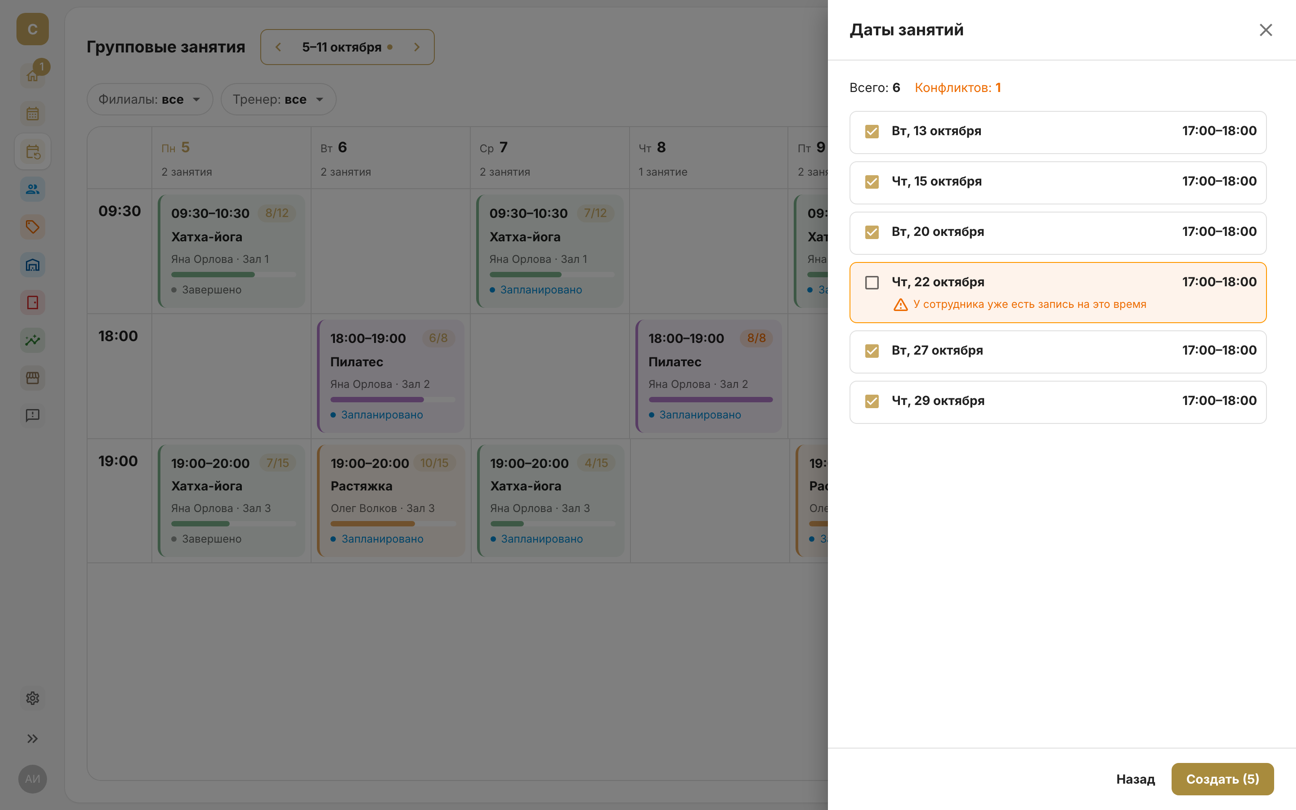
Dates with a conflict — the host is busy, the time is closed by a busy block or the room is taken — are unticked from the start. You can untick or tick any date. Create (N) creates the ticked ones.
Repeats are separate sessions, not a series: changing or cancelling one doesn't affect the others.
3. Copy the week
Once a week is scheduled, carry it over to the following weeks: use the Copy button, or Copy last week on an empty week. In the Copy a week window, choose Next week, in 2, 3 or 4 weeks — or any date in the target week. Next shows the sessions that will be created.
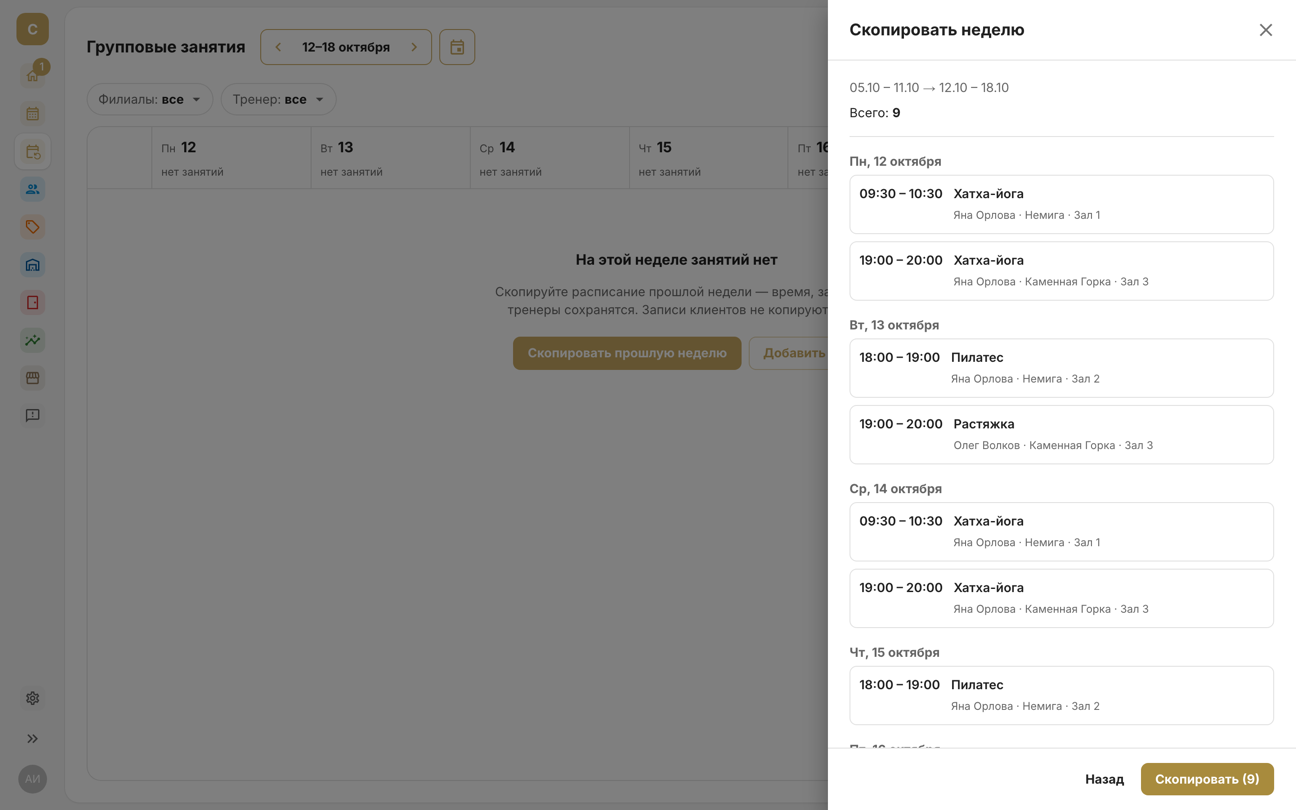
- The time, host, branch, room and number of spots are carried over. Clients aren't copied; the price and duration are taken from the service at the time of copying.
- All of the company's sessions for the week are copied — the page filters don't affect the copy.
- A conflict means the host already has a booking or session at that time in the target week. You can skip such sessions or copy them anyway — then the host will have two events at once.
- Sessions for an archived service, or for a service the host no longer performs, aren't copied — their number is shown in the “Can't copy” line.
4. Book clients
The session card opens on the right, both here and in the calendar. The Participants block shows who's booked and how many spots are taken. Book a client — choose a client from your client base or turn on Create a new client; you can book clients until the session starts. When there are no spots left, the button is inactive — you can put the client on the waitlist.
Clients can also book themselves: on the online booking page, on the Sessions tab (more details), and in the client app. They can book until the session starts, as long as there are spots left.
5. Cancel or delete a session
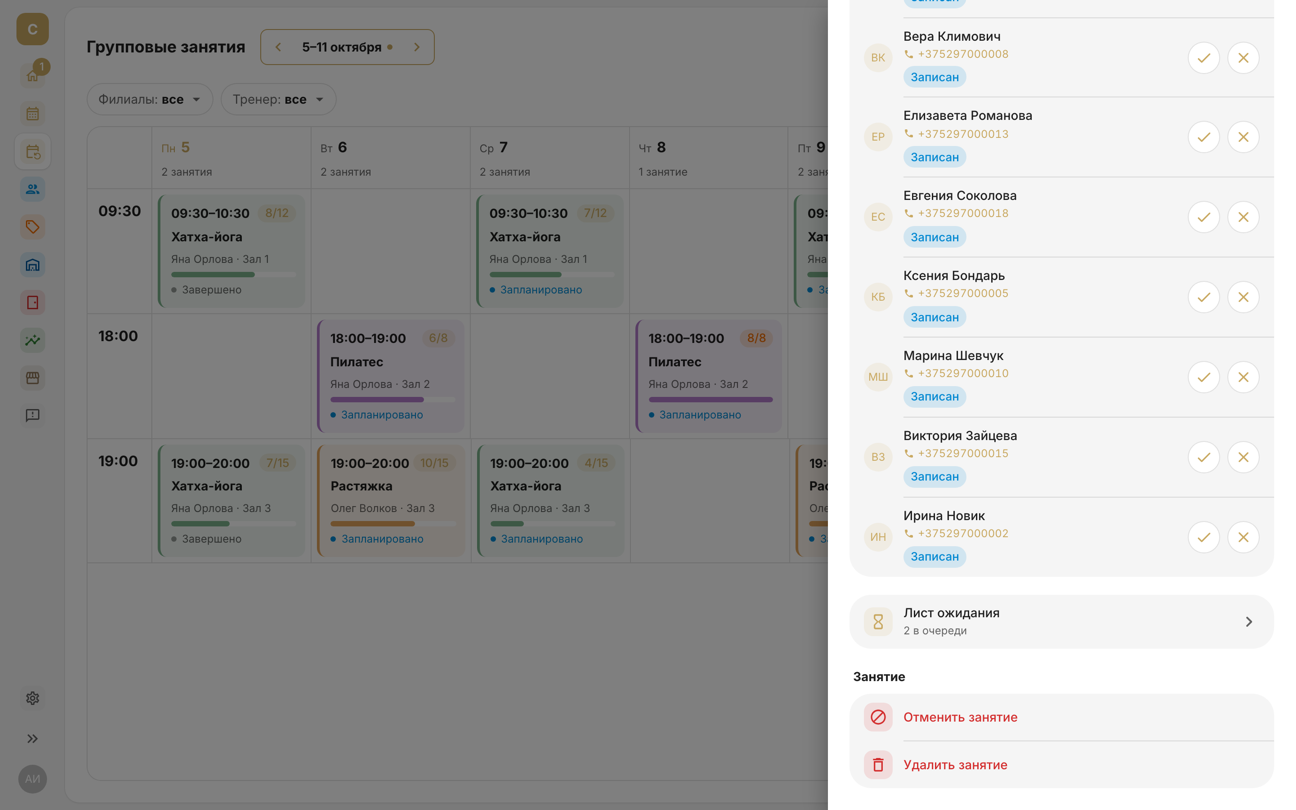
- Cancel session — the session won't take place. Participants' bookings are cancelled, visits go back to their memberships, reminders aren't sent, and the waitlist closes. You can cancel until the session has ended; a cancelled session can't be restored.
- Delete session — if it was created by mistake. The session disappears from the calendar, history and statistics together with its bookings, and paid visits go back to the memberships.
Participants don't get a separate notification when a session is cancelled or moved — in the client app they'll see that the session is cancelled. Let them know yourself: their phone numbers are in the session card.
6. Show the schedule on your website
Embed code gives you the code for a widget with the week's group session schedule. Copy it with Copy code and paste it into your web page's HTML. The widget shows sessions, free spots and a Book button, which opens the online booking page with the session already selected. Preview opens the widget in a new tab.
The widget shows all of the company's sessions, with full ones marked “No spots”. The colours come from Settings → Theme.
In the mobile app
- The section is in More → Schedule → Group sessions, and you can add it to the bottom bar. Sessions are listed by day of the week.
- The ⋮ menu in the top-right corner has Create session, Copy week and Schedule on your website: the widget code is sent with Share code.
- In the session form, the spots field is called Number of seats; repeating on days of the week works as in the web dashboard.