Branch step
On this page
At the Branch step, the client chooses where to come. The list includes only branches that can be booked right now: clients never see empty branches.
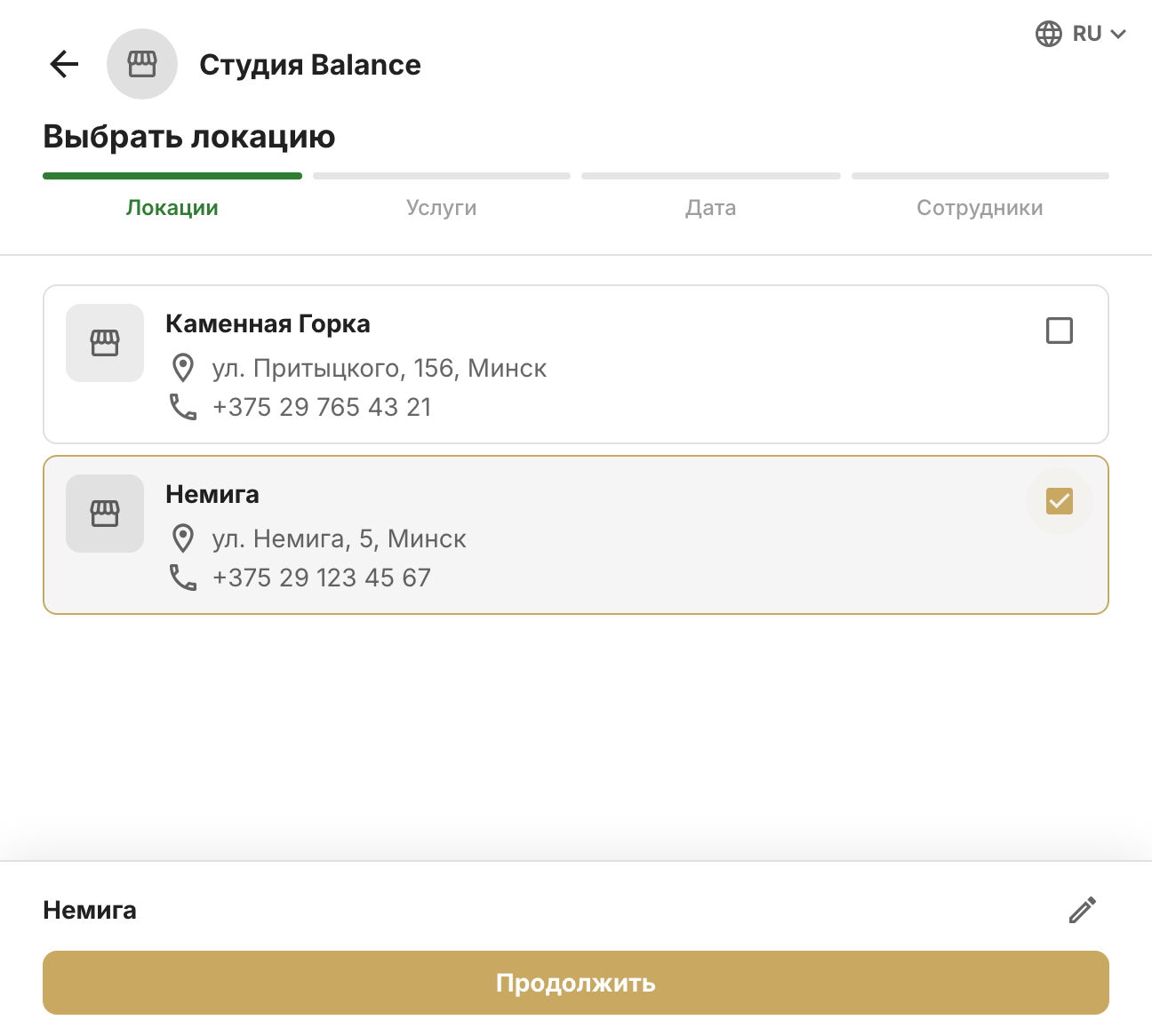
Which branches are listed
A branch is shown if it has at least one of the two:
- free time — an employee linked to the branch has a shift at this branch today (one that hasn't ended yet) or later, and the shift has a free window long enough for at least the shortest regular service;
- a group session — a session is scheduled at the branch that hasn't started yet and still has free spots.
Archived branches never appear in booking. If no branch qualifies, the client sees “Online booking isn't available yet” instead of the list — what to check is covered in “A client can't see any free time”.
A branch card shows its name, address and phone. If the branch has no phone number of its own, the company's number is shown. Tapping the selected branch again clears the selection.
How the list depends on other choices
- Services chosen — branches where each of them can be booked: a regular service needs an employee who performs it (the service's performers field) with a free window at least as long as the service; an event-only service needs a group session with free spots.
- Employee chosen — branches where they have shifts.
- Date chosen — branches with free time or a group session that day.
- Time chosen — branches where a suitable employee is free at that time for the full duration of the selected services.
An employee can work at several branches. Which branch a client books them at on a given day is decided by the shift: the branch is chosen in the day editor in Schedule → Work schedule. Being linked to a branch without a shift there doesn't open booking — more in “Employee branches”.