Employee step
At the Employee step, the client chooses who will take care of them. They can also start here — then the other steps show only this employee's services, branches and times.
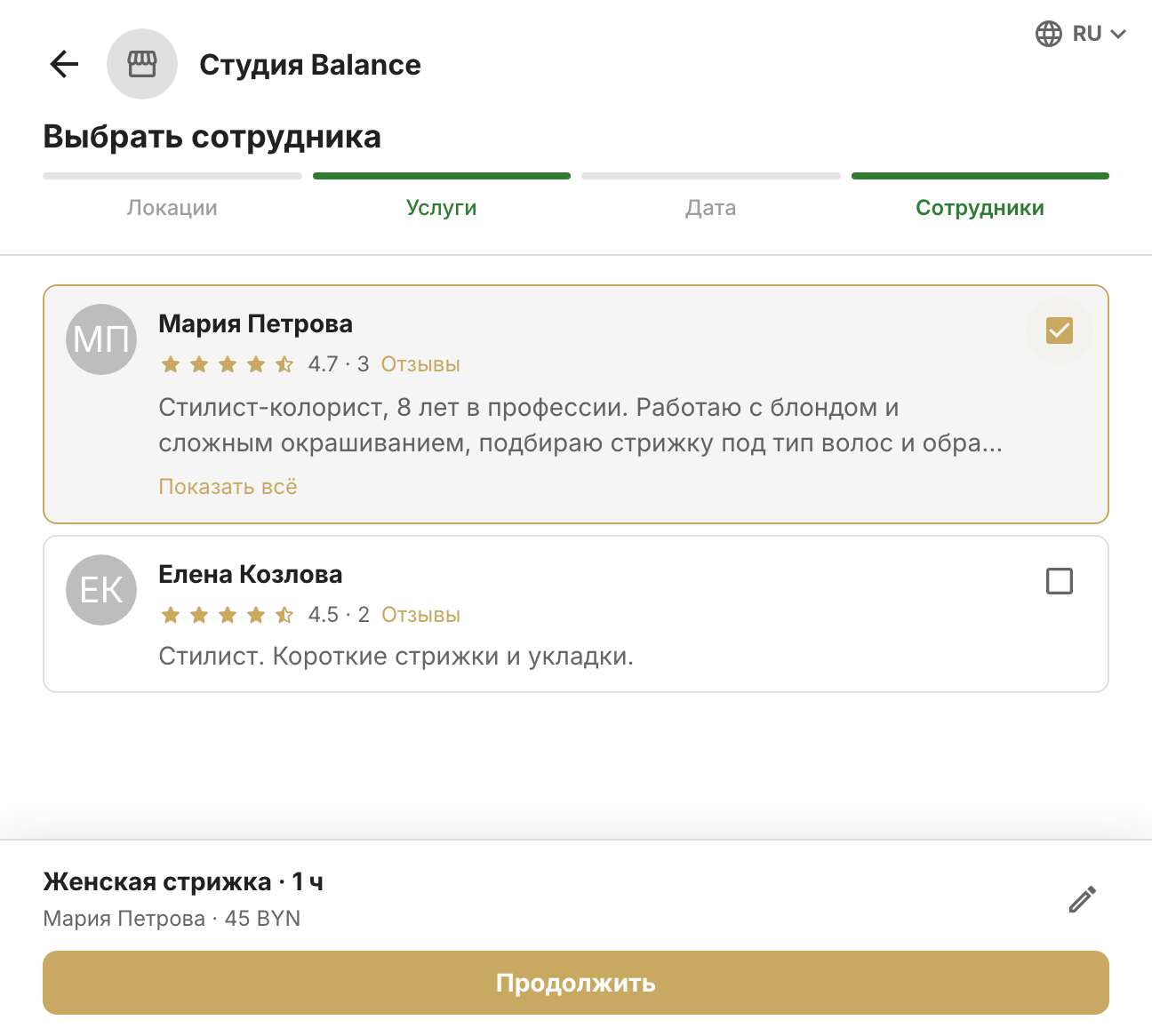
What's on an employee card
Photo, first and last name, the average rating with the number of reviews and a Reviews link, and the description from the About you field — a long one is collapsed to two lines with Show all. Employees fill in their photo and About you in their profile: the card with their name is at the bottom of the dashboard's left menu.
Clients leave reviews in the mobile app after a visit. The invitation arrives as a push notification if Ask for a review after the session is turned on in Settings → Client notifications.
Who's on the list
- the employee isn't archived and is linked to a branch that isn't archived;
- they have a shift today (one that hasn't ended yet) or later, at a branch that isn't archived;
- they perform at least one regular service or host a group session with free spots.
How the list depends on other choices
- Branch chosen — employees linked to that branch.
- Services chosen — only those who perform all the selected services. A service with an empty performers field doesn't rule anyone out.
- Date chosen — those who have a shift that day.
- Time chosen — those who are free at that time for the full duration of the selected services.
If nobody fits, the client sees that no employees are available, with a hint to choose another date or a different set of services. If a particular employee is missing, check their work schedule, branches and the service performers.
When a client books a group session, the employee is filled in automatically — it's the session host.