Calendar, work schedule and group sessions
Your company's schedule is made up of three sections. Work schedule answers when and where an employee works, Calendar — what happens during that time, and Group sessions — which sessions run during the week. It's one schedule, not three: a change in one section shows up in the others right away.
What each section covers
| Section | What's in it | Where to find it |
|---|---|---|
| Work schedule | Employees' shifts by day and branch, and busy blocks — lunch, training, personal errands | Schedule → Work schedule |
| Calendar | Client bookings and group sessions of all employees by day, week and month, and the day load | Calendar |
| Group sessions | The week's sessions: time, room, host, free spots; copying a week and the embed code for your website | Schedule → Group sessions |
A booking is one client's visit to an employee. A group session is an event with several spots that different clients book. The calendar shows both; the Group sessions page shows only sessions, arranged in a weekly table.
How the sections are connected
- Work schedule → online booking. Clients can book only during an employee's shift. Free time is the shift minus bookings, sessions and busy blocks. No shift means no free time — see “A client can't see any free time”.
- Work schedule → calendar. Under each day in the calendar is a load bar: how much of the scheduled working time is already taken. A day without shifts is labelled “Day off”.
- Calendar → work schedule. If you put a booking or session outside a shift, the shift stretches by itself, and on a day without a shift a new one appears. That's why the schedule of those who only run sessions fills itself in — more details.
- The schedule protects bookings. A shift with bookings or sessions in it can't be deleted or shortened: the dashboard will ask you to move or cancel them first.
- Busy blocks → bookings. A busy block closes the time both for online booking and for new bookings and sessions in the dashboard. In the calendar it shows as a grey bar.
- Work schedule → hours. A finished shift automatically turns into hours in Money and analytics → Time tracking — hourly pay is calculated from them.
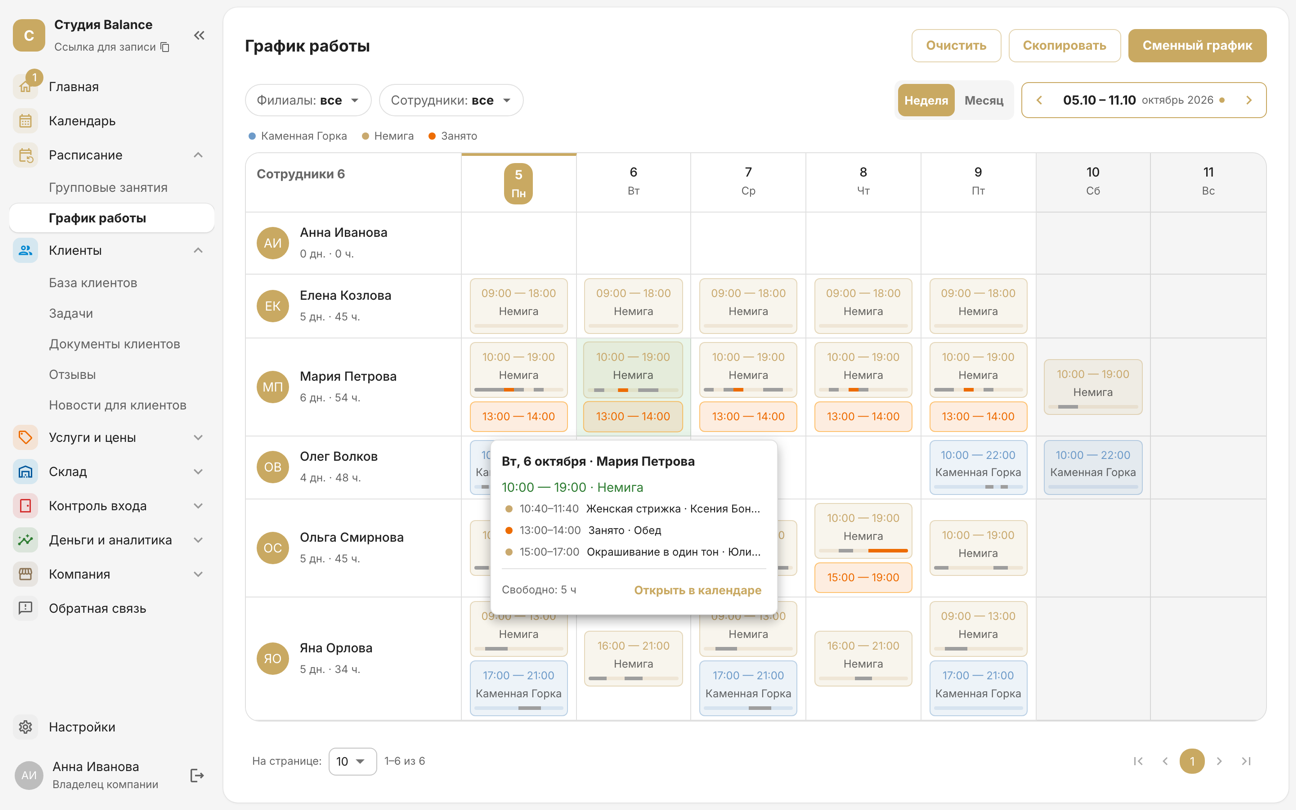
Hover over a shift in the weekly schedule to see that day's bookings and sessions and the Open in calendar button.
Where to start
- Fill in the work schedule — day by day, or a whole month at once with a shift pattern and copying.
- Check the service types in Services and prices → Services: regular services are booked into free time, event-only services only into group sessions.
- Draw up the week's group session schedule and copy it to the following weeks.
- Book clients in the calendar and mark who came — see “Attendance, cancelling and deleting bookings”.
Who sees what
The owner sees the whole company's schedule, an administrator sees their branches' bookings in the calendar, and a specialist sees only their own shifts, bookings and sessions. Which sections are open to administrators and specialists is set in Settings → Page access.
In the mobile app
The same sections are in the SetNow app for staff: Calendar and Shifts are tabs at the bottom, and group sessions are in More → Schedule. You can change the tabs in More → Customize bottom bar. How the app differs from the web dashboard is covered in each article of this section.
The words “session”, “coach” and “service” come from your company's business-type terminology, so your sections may be named differently.