Moving your client base
There's no need to retype your client base: export it to a spreadsheet and upload the file. SetNow matches the columns, skips duplicates and shows rows with errors before anything is imported.
Where to get the file: export from DIKIDI, contacts from WhatsApp or any spreadsheet of your own. Both .xlsx and .csv work.
What gets imported
| Field | Required | How to fill it in |
|---|---|---|
| Phone | Yes | A mobile number, one per cell. Numbers from your company's country can go without the country code; numbers from other countries need “+” and the code. |
| First name | Yes | A separate column, or together with the last name — full name in one column. |
| Last name | No | A separate column. |
| No | An invalid address is skipped; the client is imported without it. | |
| Date of birth | No | 12.05.1990, 12/05/1990, 1990-05-12 or an Excel date cell. |
| Notes | No | Up to 1,000 characters; longer notes are cut. |
The file carries contacts only. Visit history, upcoming bookings, memberships and discounts aren't imported — add them manually.
1. Open the import
In the web account, go to Clients → Client base and click Import in the top right. In the app, open the Clients screen, tap the ⋮ menu in the top right and choose Import clients. The owner and administrators can upload a client base.
Drop the file into the frame or click Choose file. For a sample spreadsheet with the right columns, click Download template.
The file can be up to 10 MB and 10,000 rows; split a larger base into parts. The first row holds column names. Re-save an old .xls file as .xlsx.
2. Match the columns
On the Columns step, every file column already has a client field picked by its name: “Phone”, “First name”, “Last name”, “Full name”, “Email”, “Birthday”, “Notes” and their Russian equivalents are recognized automatically. Phone and email are also checked against the values: a column without phone numbers won't get Phone, whatever it's called. The middle column shows sample values from the file, so you can see whether the guess is right. Leave extra columns on Don't import.
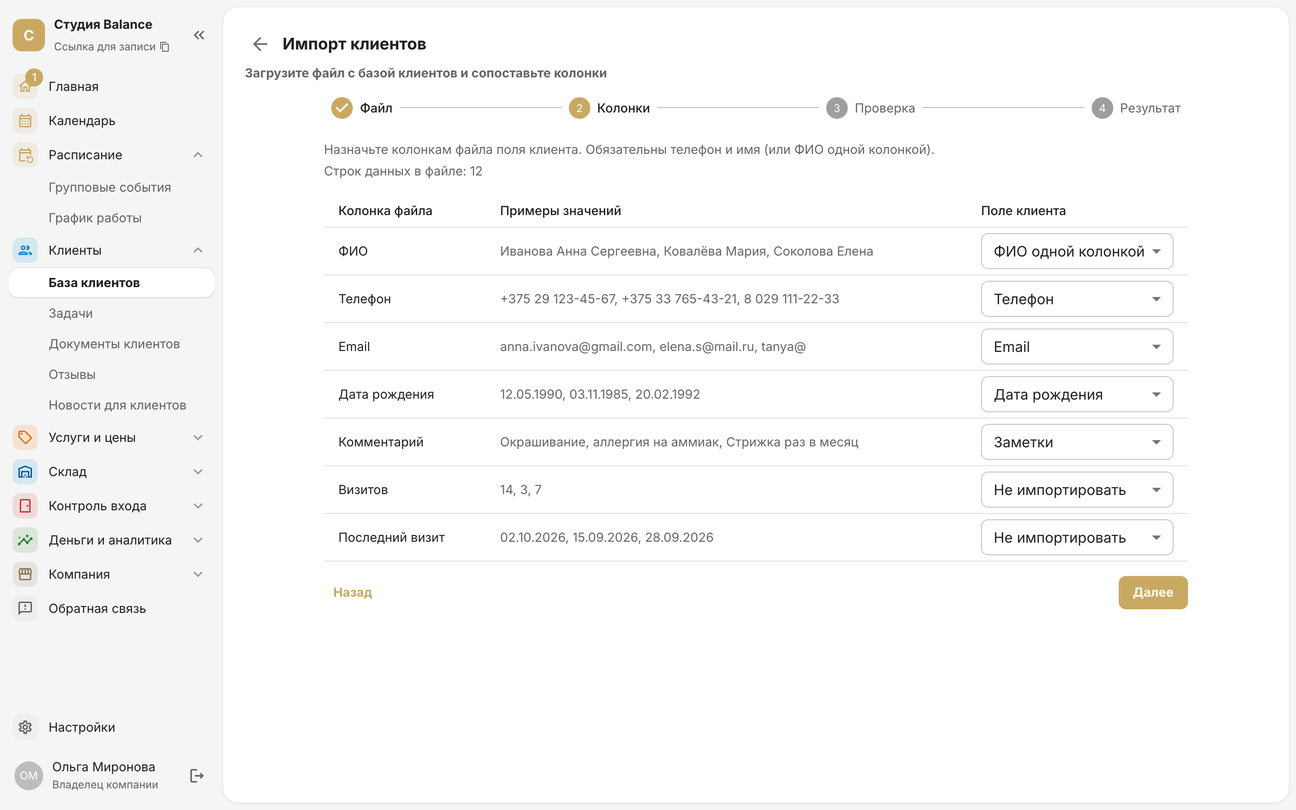
Each field belongs to one column: assign Phone to another column and it's removed from the previous one. The Next button becomes available once phone and first name are chosen.
Full name in one column, last name first — as the name says: the first word becomes the last name, the rest the first name. If the column starts with the first name (“Anna Miller”), assign it the First name field — the client will be saved exactly as in the file.
3. Check the rows
The Check step shows how many clients will be imported, the first 20 rows, and lists with the file's row numbers:
- error — the row won't be imported: the phone isn't recognized (landline, incomplete, two numbers in a cell), the name is missing or the number repeats a row above;
- warning — the client is imported without one field: an invalid email or date of birth, or notes that were cut.
The Clients in the file have visited you before switch is on: if your services have a first-visit price, these clients won't get it. Turn it off if the file lists new people, such as leads. Then click Import.
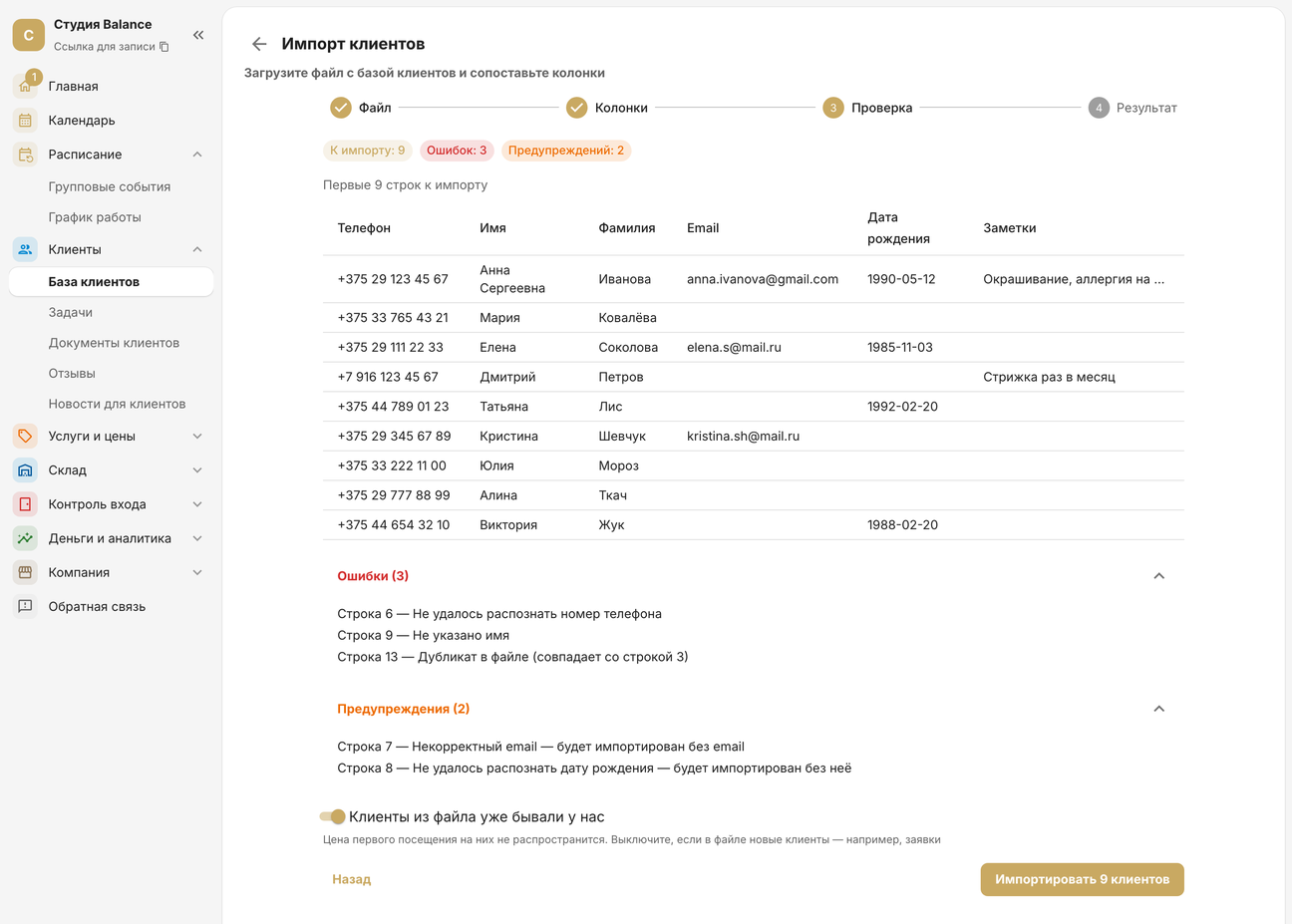
You don't have to fix errors right away: import everything that passed and the rest later, using the report.
4. Review the result
The Result step splits the file's rows into groups:
- Created — new clients;
- Linked (already in the system) — the person already uses SetNow, for example booked with another company. They appear in your base with the name and notes from the file; their own account isn't changed;
- Already in your client base — you already have this phone number. The client isn't duplicated or overwritten;
- Errors — rows that weren't imported.
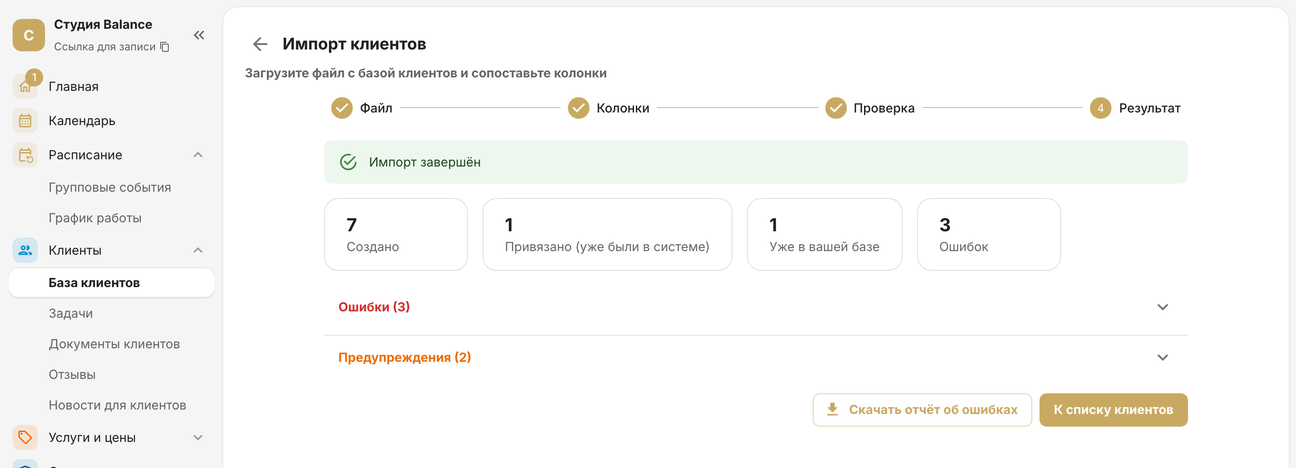
If there are errors, click Download error report — an Excel file with the row number and the reason. Fix those rows in the original file and upload it again: clients already imported will land in “Already in your client base”.
Clients receive nothing during the import — no SMS, no emails. To have regular clients book with you in SetNow, share your booking link with them.
FAQ
- I uploaded the file twice — will there be duplicates? No: a client is matched by phone, so the second time they land in “Already in your client base”.
- How do I fix a name after the import? In the client's profile. Uploading the file again doesn't change clients that are already imported.
- A client has two phone numbers in the file. Keep one mobile number in the cell; the other can go to the notes.
- Numbers without a country code aren't recognized. Only numbers from your company's country are understood without the code. Add “+” and the country code to the rest.