A client can't see any free time
A client opened your booking link but has nowhere to book: the calendar days are grey, or the service or staff member they want is missing. Almost always the cause is the work schedule or the service settings. Check them in order — from the most common cause to the rare ones.
See it through the client's eyes
Open your booking link and go through the booking yourself. Free time is shown at the Date and time step: a dot under a date means there is a free slot that day, a grey date means there is none. Below the calendar are the times available on the selected day.
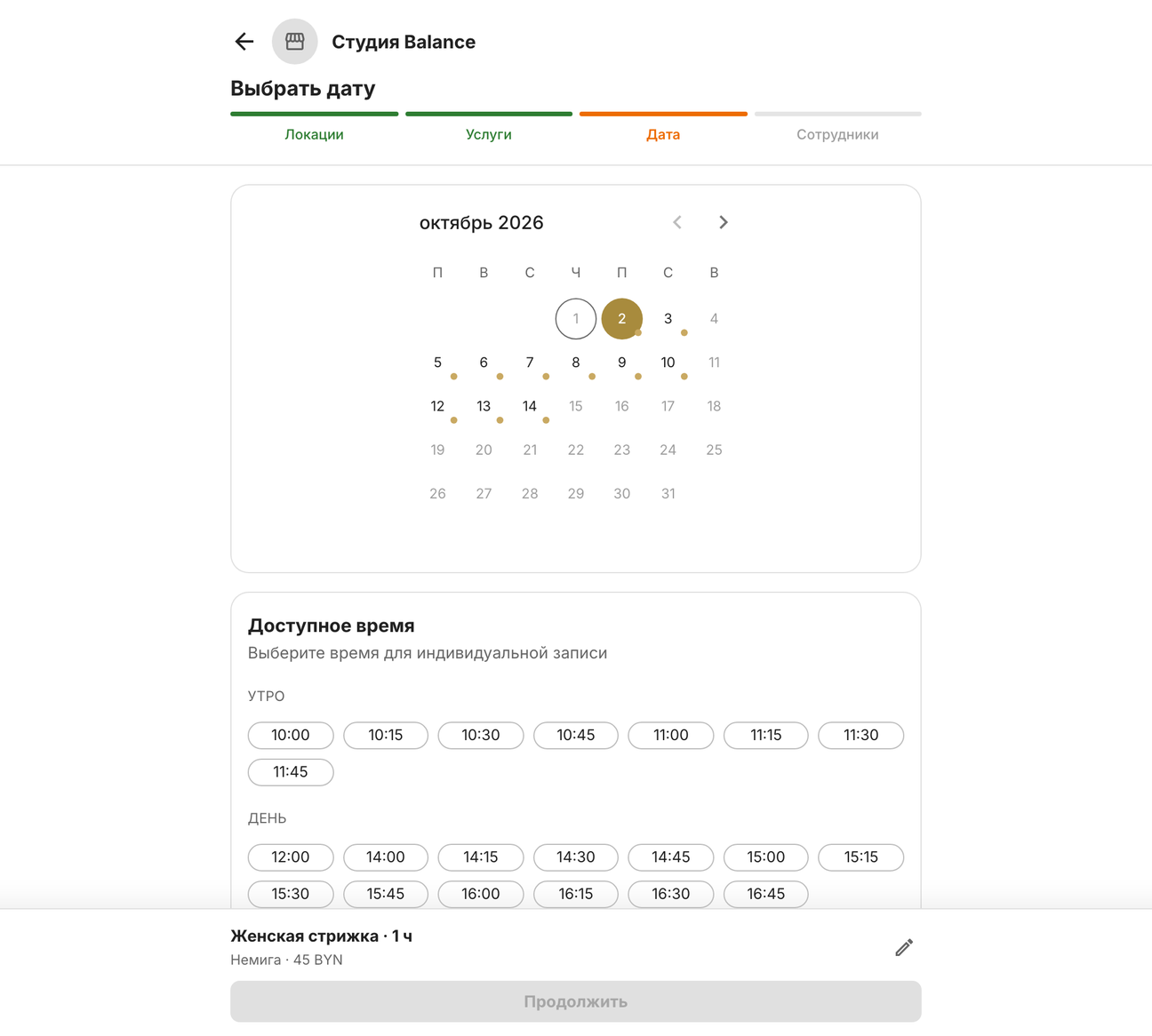
Whatever the client has already chosen narrows the other steps: if they picked a staff member first, the calendar shows only that person's days. To start over, open the booking link again.
| What the client sees | What to check |
|---|---|
| “Online booking isn't available yet” instead of branches | Work schedule — nobody has shifts |
| Every day of the month is grey | Work schedule and the next month |
| The service is missing | Performers, duration and type |
| There are days, but not the right time | Bookings and busy time |
| The staff member is missing | Employee branches, performers |
| The group session is missing | Group sessions |
1. Fill in the work schedule
Clients can book only within an employee's working hours. No shift means no free time, even if the service and the employee are set up. Open Schedule → Work schedule and look for empty rows.
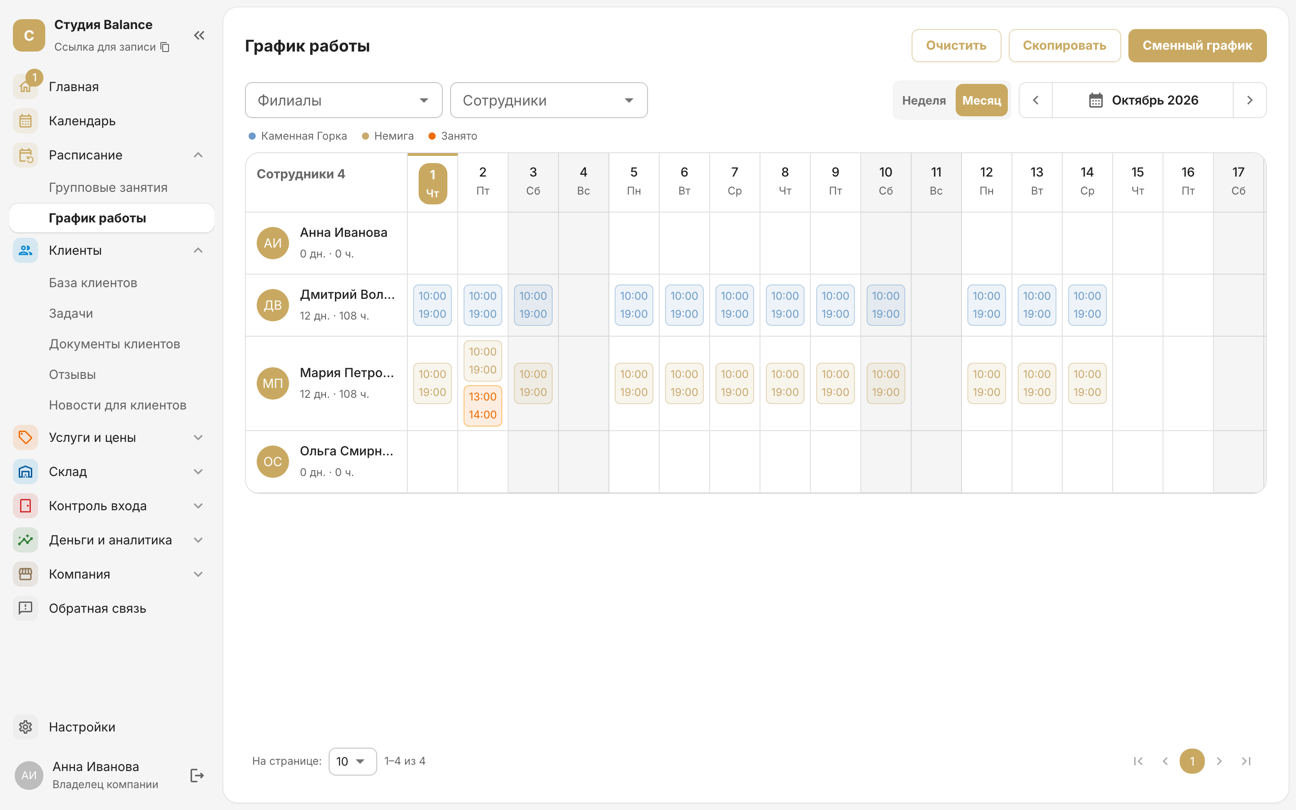
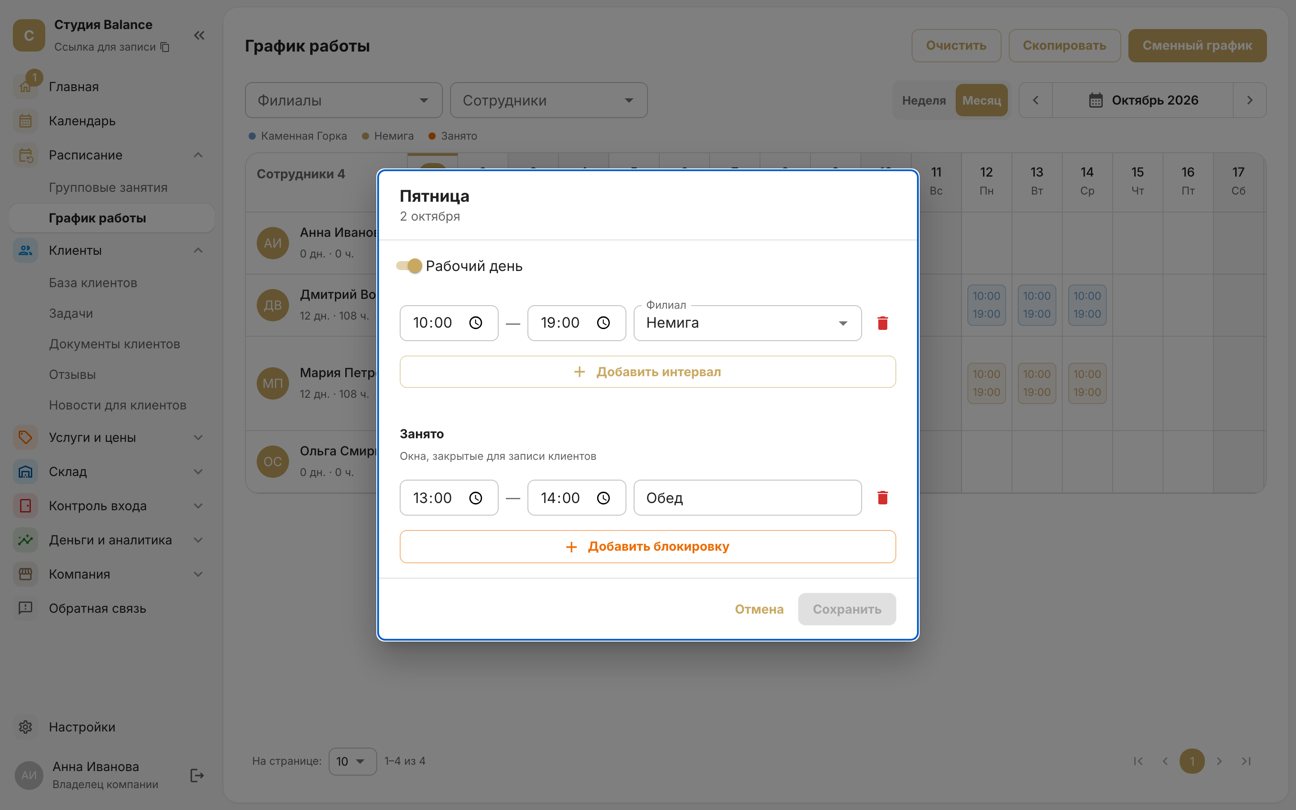
Click an employee's day, turn on Working day, set the hours and the Branch, and click Save. To avoid filling in days one by one, use Shift pattern — for example, 2 on, 2 off — or Copy to carry a week over to the next one. For details, see “Work schedule” and “Shift pattern, copying and clearing”.
The calendar on the booking page opens on the current month. If shifts start only next month, the client sees a grey month until they flip it with the arrow. Fill in the schedule for the coming days too.
2. Check the service's performers
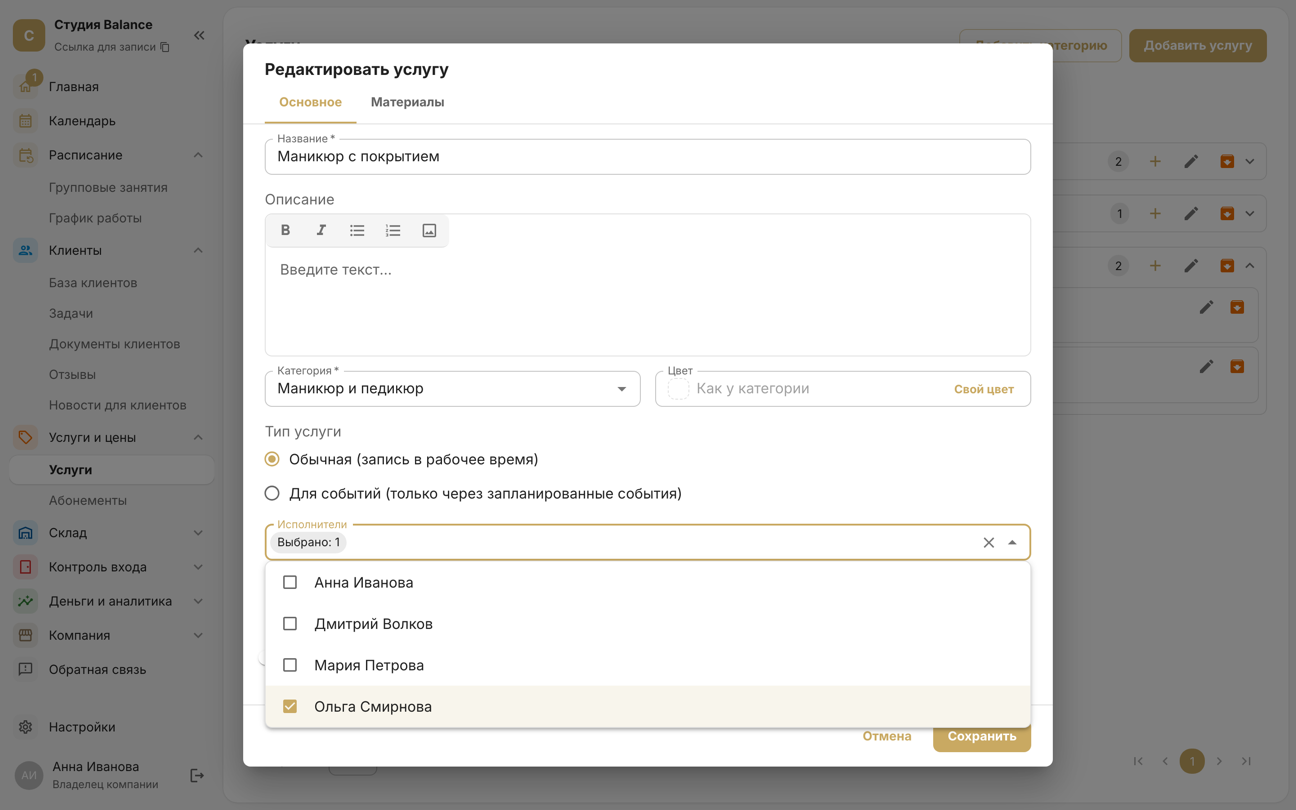
In Services and prices → Services, open the service with the pencil and look at the performers field. If it is empty, every employee performs the service. If specific people are selected, the service appears in booking only when one of them has a shift, and clients can book only with them.
If a client picks several services at once, they can only be booked with an employee who performs all of them. If there is no such employee, the second service turns grey with the caption “Performed by another employee — can't be combined in one booking”.
3. Check the service's duration and type
A service can be booked only if a shift has a free window at least as long as the service's duration. When a client picks several services, their durations add up: a 90-minute manicure and a 90-minute pedicure need three free hours in a row.
The window must fit into a single shift interval. If a day is split into 10:00–13:00 and 13:00–19:00, a two-hour service can't start at 12:00, even though there is no break. Set one interval for the whole day and mark the break as busy time instead.
The service type must be the regular one — booking during working hours. A service of the events type can't be booked into free time: it's available only for group sessions, if there are any in the schedule.
4. Check whether the time is taken
Free time is the shift minus everything already in it: client bookings, the employee's group sessions and Busy blocks. If a day is fully booked it turns grey, although the service and the branch stay in the list. You can see how busy each day is in the Calendar.
Busy blocks — lunch, training, personal errands — are set in the same day editor. Delete the ones you don't need with the bin icon and click Save.
5. Check the employee's branches
An employee is shown in a branch only if they are linked to that branch and their shift is set there. To link them: Company → Employees → the employee's card → Edit → the Branches field. The branch of a shift is chosen in the day editor.
6. Group sessions
If a client opens Date and time before choosing a service, there are two tabs: Available times and Sessions, and the first one is open. A dot under a date can mean a group session: if a day has a dot but no times, switch the tab. A session disappears from booking when it has no seats left, has already started or online booking for it has closed. To keep clients from leaving, turn on the waitlist.
This is not a bug
- Past time isn't shown. Today's times disappear as they pass. Unless online booking closes in advance, clients can book right up to the start.
- Online booking cutoff. If Close booking, min before in Settings → Online booking is above 0, times and group sessions that start sooner than that aren't shown in booking: with 120 at 15:00, the earliest time is after 17:00.
- Booking step. Times start at the beginning of the shift and follow the step set in Settings → Online booking: with a 60-minute step the client sees 10:00 and 11:00, but not 10:30.
- Archive. Archived services and employees don't appear in booking. Find them with the Status filter and restore them. Shifts and group sessions at an archived branch don't appear either, and a new shift can't be added there.
- Time zone. Times on the booking page are shown in the company's time zone — it's set in Company → Company details. After changing the time zone, double-check the schedule.