Date and time step
On this page
At the Date and time step, the client picks a day in the calendar and, below it, a time or a group session.
Calendar
A dot under a date means that day has free time or a group session with free spots. Days without a dot and past dates can't be selected. The calendar opens on the current month; the arrow takes the client to the next one.
Days are calculated with the branch, services and employee already chosen in mind. Until services are chosen, a day gets a dot if at least the shortest regular service fits into it.
Available times
Below the calendar, Available times lists the selected day's times by part of the day: Morning — before 12:00, Afternoon — from 12:00 to 17:00, Evening — from 17:00. Times are shown in the company's time zone.
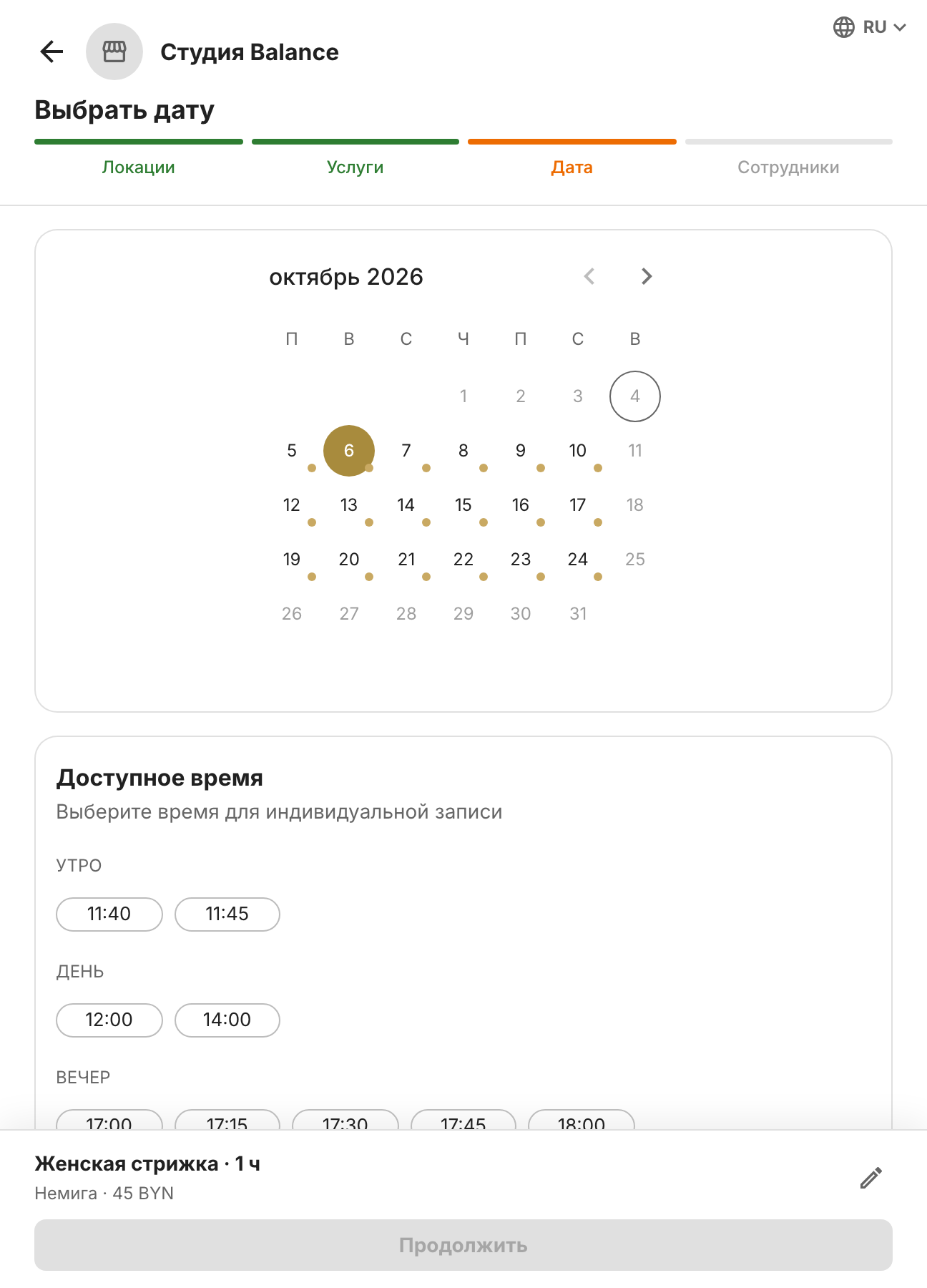
How times are calculated:
- options start at the beginning of the shift and follow the booking step: with a 15-minute step — 10:00, 10:15, 10:30 and so on;
- the booking must fit entirely into one shift interval — for the total duration of the selected services;
- time taken by client bookings, the employee's group sessions and Busy blocks is subtracted;
- if a booking ends off the step — for example, at 11:40 with a 15-minute step — the client is offered 11:40 as well, so no idle time is left between bookings;
- past times aren't shown, and neither are times for which online booking has already closed.
A time is shown if at least one suitable employee is free. Until an employee is chosen, the client sees everyone's times at once, and the Employee step then keeps only those who are free at exactly that time.
Group sessions
Until services are chosen, there are two tabs under the calendar: Available times and Sessions. If a regular service is chosen, only available times remain; if an event-only service is chosen, only sessions remain.
The Sessions tab lists the selected day's group sessions that are still open for booking and have spots. Each card shows the time, how many spots are left, the branch and room, the service, the host and the price.
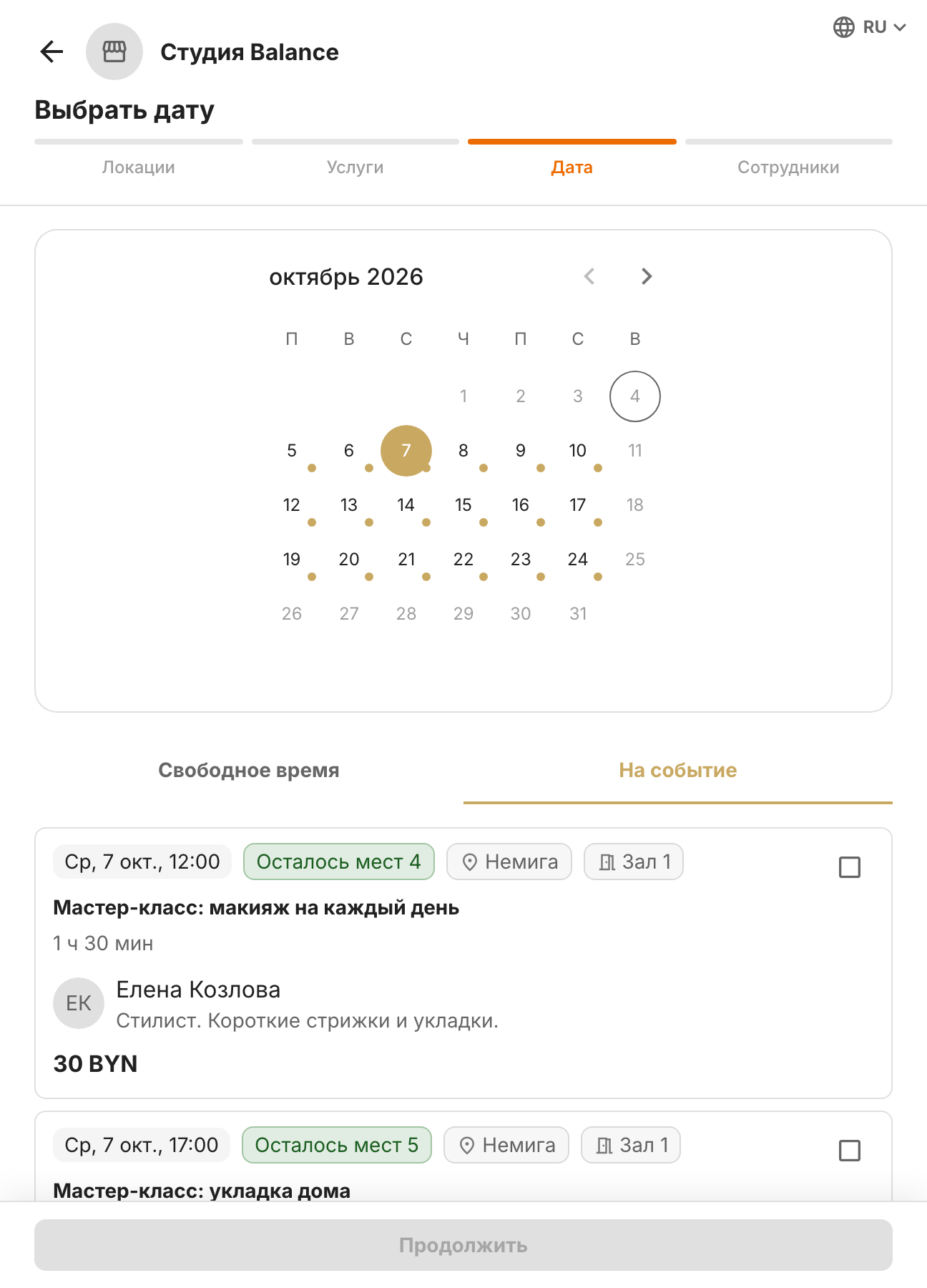
The selected session fills in the empty steps: branch, service, employee and date. Whatever the client chose themselves stays unchanged. If the session is deselected, the filled-in steps go back to how they were.
A full session isn't shown on the booking page. Clients can join the queue for it in the app if the waitlist is turned on.