Online booking for clients
On this page
Clients book on their own through your company's link — no calls or back-and-forth messages. They choose a branch, services, a date and time, and an employee in any order, and every choice narrows the other steps: the page shows only what can actually be booked.
How the booking page works
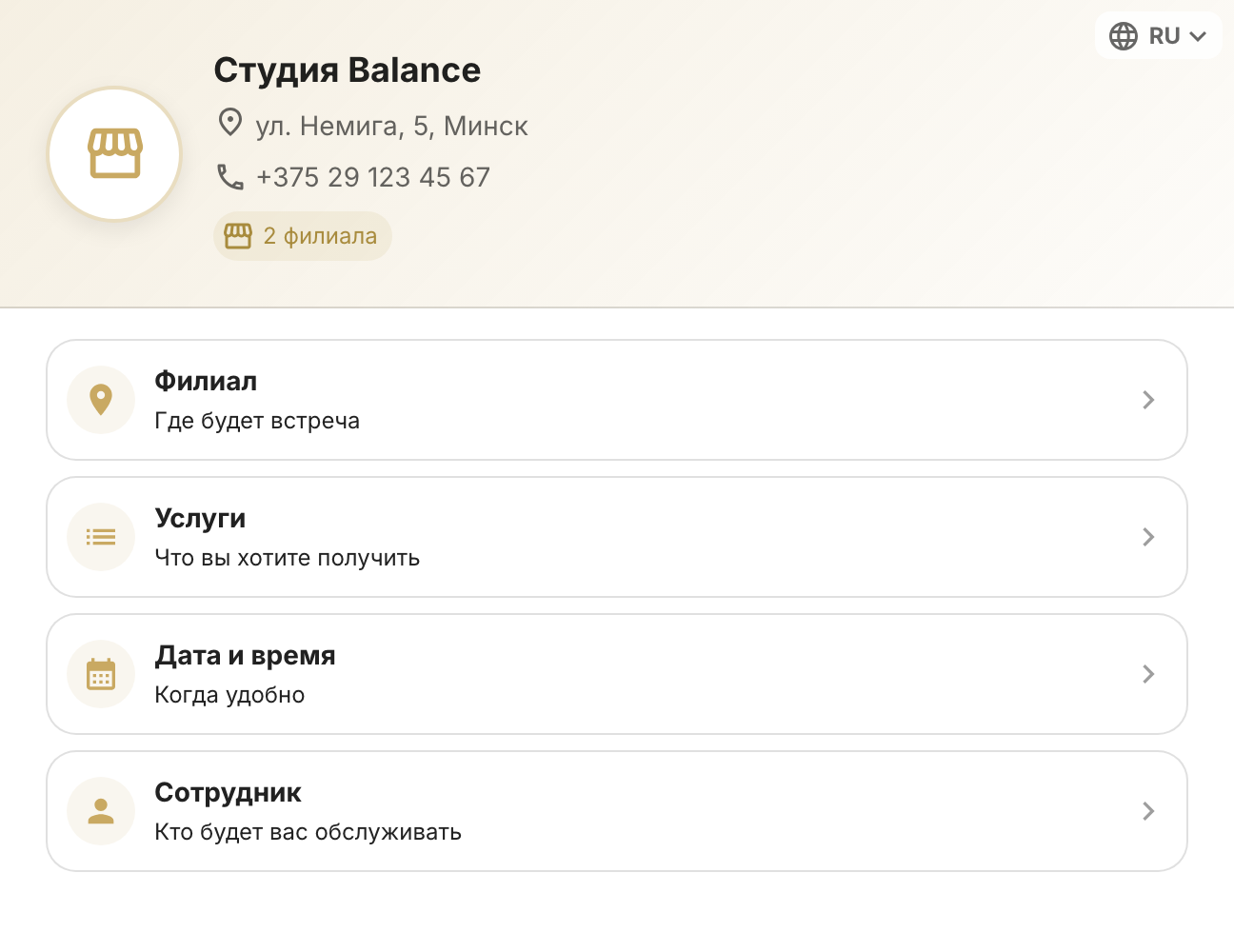
The booking link opens your company's page: logo, name, address, phone and four cards — Branch, Services, Date and time and Employee. Clients can start with any of them: some know which specialist they want, others only care about a convenient day.
At the top of every step is a progress bar: Locations, Services, Date, Employees. Green means the step is filled in, orange means it's started (a day is picked but not a time), and the theme colour marks the step that's open now. The bar also lets the client jump to any step.
As soon as the client picks something, a summary and the Continue button appear at the bottom. The button becomes active once a choice is made on the current step and takes the client to the first step that isn't filled in yet. When all four are filled in, the client moves on to booking confirmation.
Every choice narrows the other steps
The booking page never shows anything that can't be booked. Whatever the client has already chosen is taken into account on the other steps:
| The client chose | What remains on the other steps |
|---|---|
| A branch | Services, employees and days that can be booked at that branch |
| Services | Branches where they're provided; employees who perform all the selected services; days with a free window long enough for their total duration |
| An employee | Their services, the branches where they have shifts, and the days when they have free time |
| A date | Branches and services with free time or a group session that day, and employees with a shift that day |
| A time | Branches, services and employees that have this time free for the full length of the booking |
A choice on one step doesn't reset the others. If the client changes their mind — say, picks a different employee who doesn't perform the services already selected — there will be no free days. A choice that no longer fits is cleared by tapping it again, and to start from scratch the client can simply open the link again.
The detailed rules of each step are in the articles of this section below. If a client gets stuck on an empty step, start with “A client can't see any free time”.
Group sessions
Clients book a group session at the same Date and time step, on the Sessions tab. The chosen session fills in the empty steps by itself: branch, service, employee and date. For details, see the article about the Date and time step.
Words on the booking page — “services”, “session”, “coach” — come from your company's business-type terminology, so yours may be different. If your company has its own mobile app, clients can book there too: the steps are the same, but the app doesn't ask for a name and phone — the client has already signed in with their number.