Attendance, cancelling and deleting bookings
For an event in the calendar, the question is whether it takes place; for a client's booking, it's how it ended. The answers determine membership deductions, statistics and payroll.
Statuses
| Status | What it means |
|---|---|
| Scheduled, in progress, finished | Where the event is in time — changes by itself as time passes |
| Cancelled (event) | The booking or session won't take place |
| Booked | The client is booked, not marked yet |
| Attended | The client came to the visit or session |
| No-show | The client didn't come |
| Cancelled (client's booking) | The booking was cancelled by the client or the company — the client's row says which |
A regular booking's card has a single label: the visit's outcome once it's marked, otherwise its time status. On a group session the label shows the session's time status, and participants' statuses are in their rows.
1. Mark attendance
In a booking or session card, each client has two buttons: ✓ — “Attended”, ✕ — “No-show”. You can set and correct the mark at any time, even before the start; clicking again clears it, and the client is back to booked.
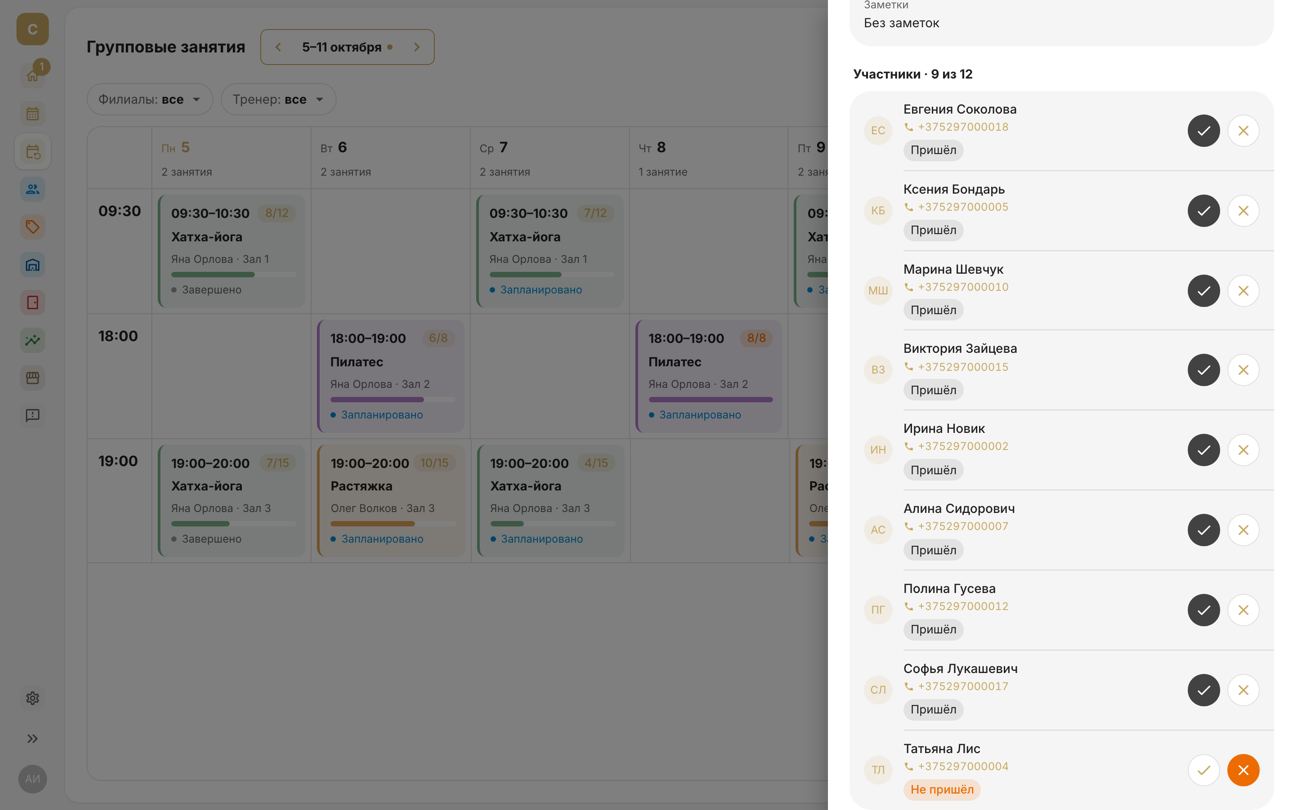
If Complete bookings automatically is on in Settings → Online booking, once a visit is over, all booked clients become “Attended” on their own — you only need to mark no-shows manually. If it's off, attendance is marked only manually.
For a booking paid with a membership, ✕ asks whether to deduct the visit: No-show — with penalty or No-show — without penalty.
2. Cancel a booking
Cancel booking is in the card's Booking group while the booking still has the booked status and its day hasn't passed. The booking stays in the history as cancelled, and the time is freed up for other clients.
If the booking is paid with a membership, choose Cancel without penalty — the visit goes back to the membership — or Cancel with penalty — the visit is forfeited; this is how last-minute cancellations are recorded. You can change the decision later: a cancelled booking or a no-show paid with a membership has Return visit and Deduct visit.
A client can cancel a booking themselves — via the link in the SMS or in the app — no later than the deadline in the online booking settings, 3 hours before the start by default, and the visit is returned. After that, only an employee can cancel it.
Cancelling a whole group session cancels all participants' bookings — see “Group sessions”.
3. Delete a booking made by mistake
Delete booking and Delete session are for things created by mistake. What's deleted disappears from the calendar, the client's history and statistics, and a visit paid with a membership is returned. A cancellation stays in the history, a deletion doesn't: if the client changed their mind, cancel rather than delete.
A past session can't be cancelled — it has already taken place. If it was created by mistake, delete it.
What depends on this
- Memberships — a visit is deducted at booking and returned on cancellation without a penalty, on deletion, and when the company cancels the session.
- Statistics and financial reports — completed visits and cancellations, with cancellations by the client and by the company counted separately.
- Payroll — pay per session is calculated from sessions that took place: not cancelled and with their end time passed.
In the mobile app
Bookings and sessions open full screen; the marks are the ✓ and ✕ circles next to the client. Cancelling and deleting are at the bottom of the screen, in the Booking and Session groups.