Online booking settings
Online booking is set up in two places: Settings → Online booking and Settings → Client notifications. Changes take effect once you click Save and are visible to clients right away.
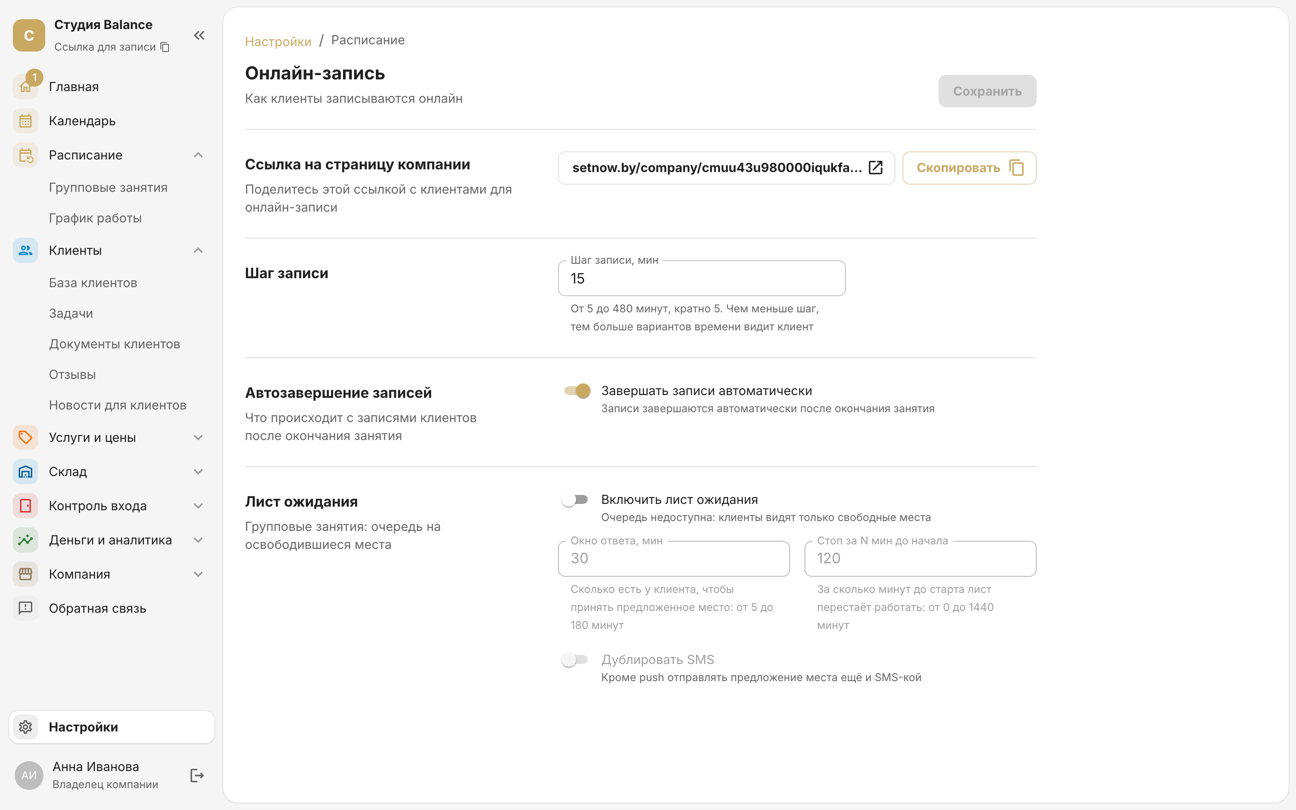
1. Booking step
Booking step, min in Settings → Online booking sets the interval between the times offered to clients: from 5 to 480 minutes, in multiples of 5, 15 by default. Times start at the beginning of the shift: with a 30-minute step and a shift starting at 10:00, the client sees 10:00, 10:30, 11:00.
The smaller the step, the more time options. A large step is handy when your services are all the same length: if a massage takes 60 minutes, a 60-minute step keeps bookings from landing at odd times and leaving 15-minute gaps between them.
2. Online booking cutoff
You can stop clients from booking themselves shortly before the start. In Settings → Online booking, in the Close booking, min before field, enter how many minutes before the start online booking closes: for example, 120 closes it 2 hours before. The default is 0 — no limit.
If less time is left before the start, the client won't see that time on the website or in the app and can no longer book a group session: in the schedule on your website, Book is replaced with Booking closed.
Staff can book clients at any time. The waitlist also stops offering spots no later than this point.
3. Client cancellation
A client can cancel a booking themselves — via the link in the SMS or in the app. In Settings → Online booking, in the Cancel up to, hours before field, enter how many hours before the start this option goes away: for example, 24 means a day before. The default is 3, and 0 means right up to the start.
If less time is left before the start, the booking page from the SMS link shows the client the cancellation deadline and the company's phone number instead of Cancel booking. In the app, the cancellation won't go through — the client sees an error with that deadline.
Staff can cancel bookings at any time. A cancellation by the client returns the visit to the membership, and a late cancellation — with or without a penalty — is made by an employee: see Attendance, cancelling and deleting bookings.
4. Auto-completing bookings
Complete bookings automatically — once a visit is over, the booking is marked as completed on its own. If you turn this off, attendance (attended or no-show) is marked manually, and until it's marked, bookings stay confirmed.
5. Waitlist
Enable waitlist — a queue for full group sessions: when a spot frees up, it's offered to the first person in line. How to set the response window and the stop before the start is covered in “Waitlist for sessions”.
6. Confirmation by SMS code
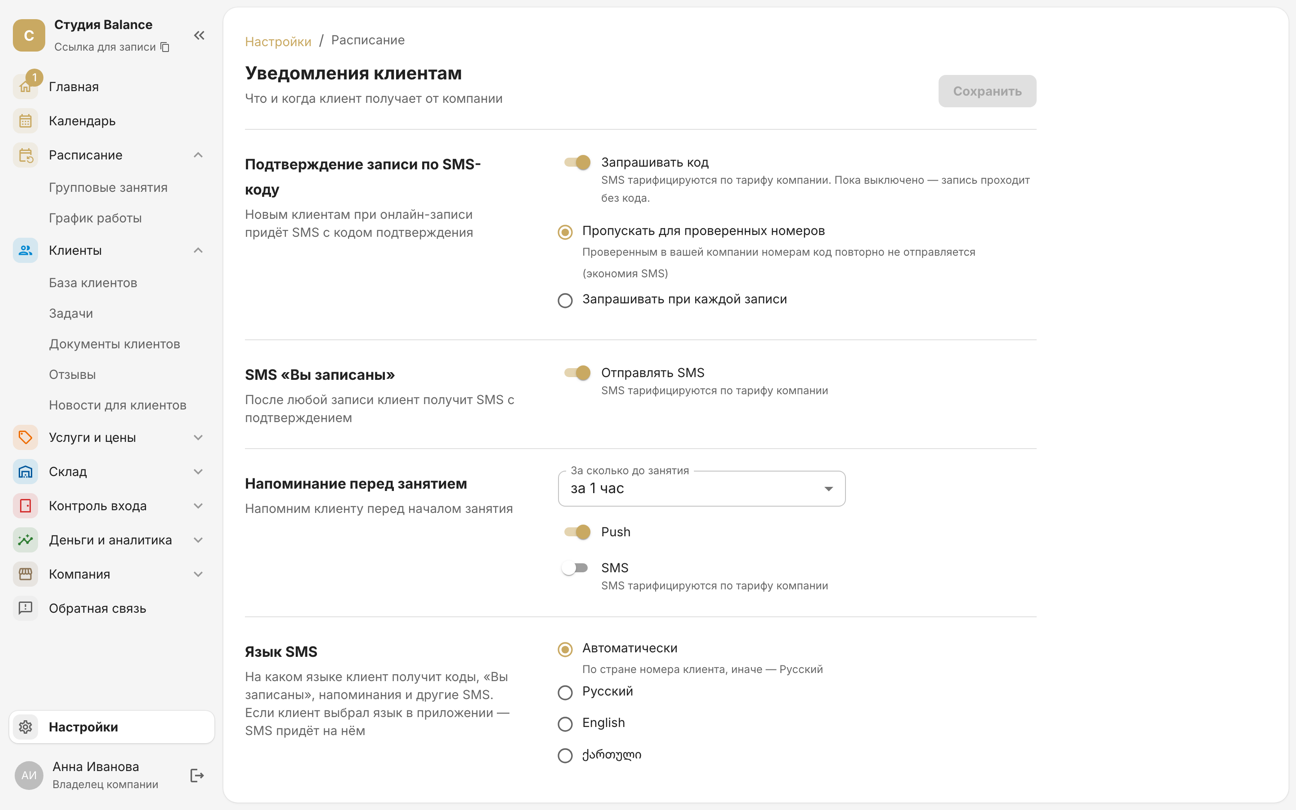
In Settings → Client notifications, in the Booking confirmation by SMS code block, turn on Ask for a code — the client confirms their number with a code from an SMS before the booking appears in the calendar. This keeps other people's and mistyped numbers out of your client base.
Then choose when to ask for the code:
- Skip for verified numbers — the code goes only to those who haven't verified their number with your company yet. Saves SMS;
- Ask on every booking — the code is always sent.
SMS are charged to the company's SMS balance — see SMS packages and notifications. If you run out of SMS, booking doesn't stop: clients book without a code.
7. What the client gets after booking
The same page turns on the “You're booked” SMS with a link to the booking, the reminder before the visit and the review request — details in SMS packages and notifications.